
Your buyers cannot feel your products physically, which is why 3D models would be your best option to assess your goods. However, once you begin to upload assets, you will have to make one very important decision GLB vs USDZ. Making a mistake can ruin all your efforts by compromising either AR functionality or page speed.
Let us explore the differences between the two formats in terms of configuration, performance, and support. You will get the necessary information about how to configure the optimal file format.
Side-by-Side glb vs usdz Comparison
| Feature | GLB Format | USDZ Format |
| Primary Creator | Khronos Group (Open Standard) | Pixar & Apple |
| File Structure | Single Binary File | Uncompressed ZIP Archive |
| Native Android Support | Yes (via Scene Viewer) | No |
| Native iOS Support | No | Yes (via AR Quick Look) |
| Standard Compression | Draco Compression | None (requires manual asset optimization) |
| Web Browser Support | Universal (via WebGL / <model-viewer>) | iOS Safari & iOS Chrome Only |
| Ideal Use Case | Web-based 3D viewers and Android AR | iOS native mobile apps and Safari-based AR |
What is the GLB File Format?
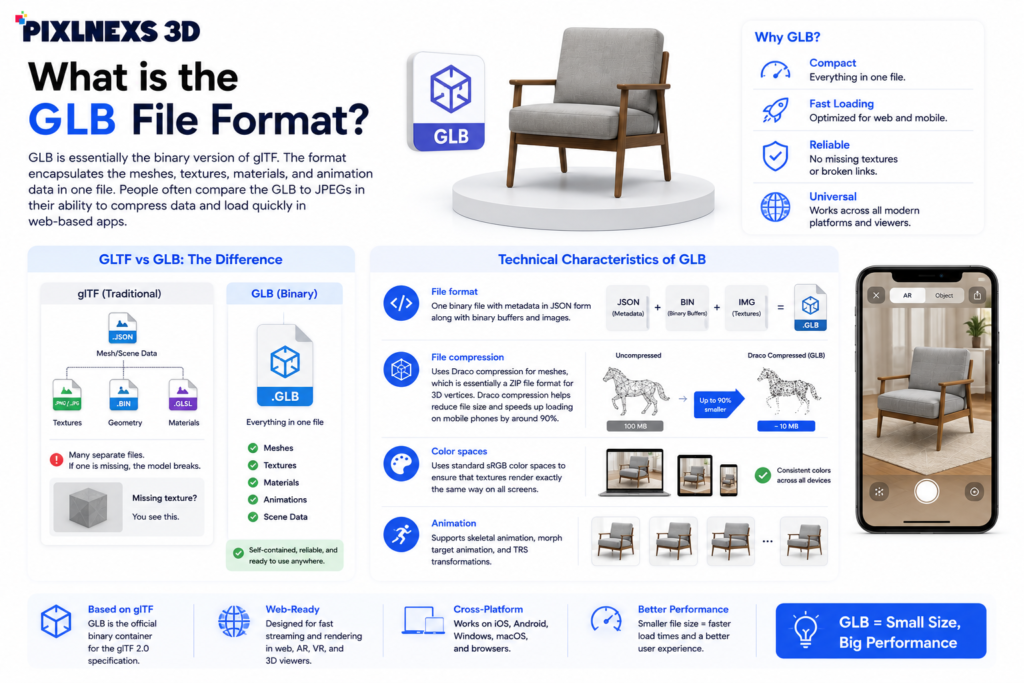
GLB is essentially the binary version of glTF. The format encapsulates the meshes, textures, materials, and animation data in one file. People often compare the GLB to JPEGs in their ability to compress data and load quickly in web-based apps.
It may be easier to explain the structure of GLB by comparing it with normal glTF files. A basic glTF setup consists of text-based .json files containing the data for the mesh along with external texture files and geometry. Once all these separate files are uploaded to an online store, even a single image file that goes missing could cause problems with the model. Users would see a gray block without textures.
By integrating the geometry and the textures within one file, GLB solves the issues of the previous format.
Technical Characteristics of GLB
- File format: One binary file with metadata in JSON form along with binary buffers and images.
- File compression: Uses Draco compression for meshes, which is essentially a ZIP file format for 3D vertices. Draco compression helps reduce file size and speeds up loading on mobile phones by around 90 percent.
- Color spaces: Uses standard sRGB color spaces to ensure that textures render exactly the same way on all screens.
- Animation: Supports skeletal animation, morph target animation, and TRS transformations.
Pros and Cons of GLB for eCommerce
Pros
Compatibility with web technology: Supports WebGL directly, working in virtually all web browsers.
Package design: Stores texture files such as PNGs and JPEGs within the file itself, hence no external dependencies.
Compliance with mobile devices: Supports AR viewing through Android Scene Viewer.
File size: Uses Draco compression technique for reducing structure of the object but without destroying its visual qualities.
Cons
No native iOS compatibility for AR: Does not support Apple’s built-in AR Quick Look functionality.
Visual inconsistency: Since web browsers employ different algorithms for rendering 3D models, there might be variations in lighting, metallic components, and even colors.
What is the USDZ File Format?
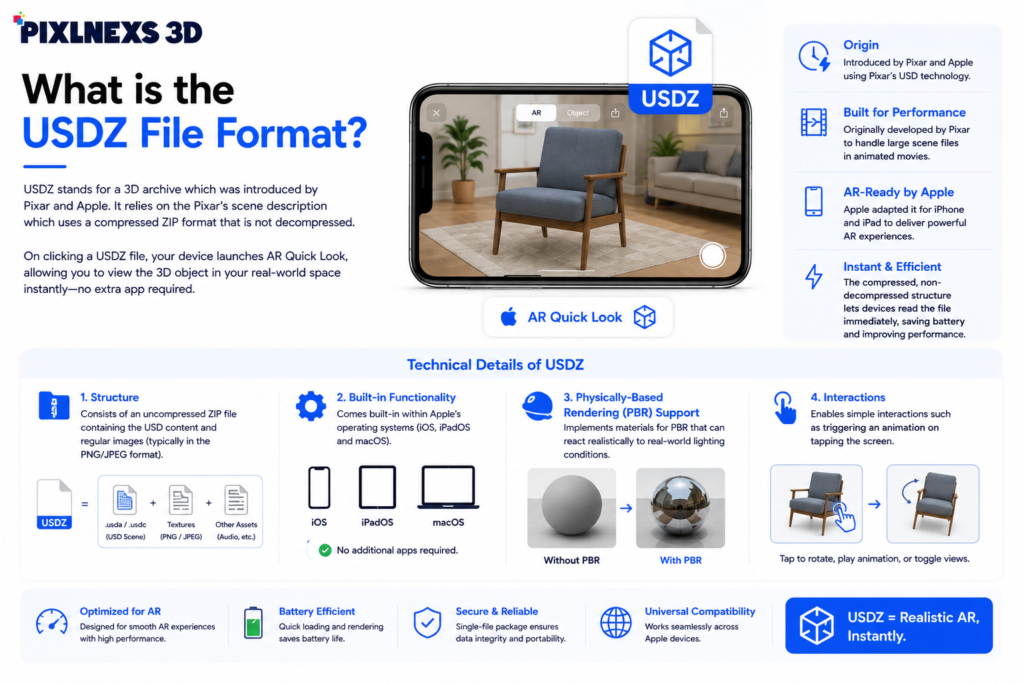
USDZ stands for a 3D archive which was introduced by Pixar and Apple. It relies on the Pixar’s scene description which uses a compressed ZIP format that is not decompressed.
In the initial stages, Pixar created the technology to be able to work with large files needed for scenes in movies produced by animation. Afterward, Apple used the technology to ensure that their smartphones (iPhone and iPad) were able to execute AR tasks without downloading any other application.
On clicking on the USDZ file, the device will launch AR Quick Look to enable users to view the 3D object placed in their rooms.
The fact that the USDZ technology is not decompressed enables the device to interpret the file immediately from the package without spending unnecessary battery energy.
Technical Details of USDZ
Structure: Consists of an uncompressed ZIP file containing the USD content and regular images (typically in the PNG/JPEG format).
Built-in functionality: Comes built-in within Apple’s operating systems (iOS/iPadOS and macOS).
Physically-Based Rendering (PBR) support: Implements materials for PBR that can react realistically to real-world lighting conditions.
Interactions: Enables simple interactions such as triggering an animation on tapping the screen.
Advantages and Drawbacks of USDZ
Advantages
- Seamless iOS AR: Let iOS users drop objects into their rooms immediately.
- Visual accuracy: Apple’s viewer displays these files with clean shadows and reflections.
- No extra apps: Quick Look works inside browsers and apps on iPhones.
- Apple tool support: Connects directly with Apple programs like Reality Composer and Xcode
Drawbacks
- No Android support: Android devices cannot open USDZ files on their own. They must use GLB files.
- No mesh compression: USDZ lacks tools like Draco compression, meaning complicated models can end up as very large files.
- Fewer web editor options: Most browser tools edit GLB files, leaving fewer options for modifying USDZ files directly on the web.
Platform Compatibility
To make 3D products work for everyone, your shop must cater to both Android and iOS visitors. This means setting up your site to handle both files correctly.
How Shopify Handles 3D Files
Shopify keeps 3D simple. You only need to upload GLB files.
When you upload a GLB, Shopify’s servers build a USDZ version in the background. Because of this, both iPhone and Android shoppers see a working AR model when they tap the button.
This automatic conversion is handy, but it can sometimes change lighting or how shiny materials look. If you need exact colors, like for furniture or paint, you should check both versions on actual phones rather than trusting the automatic system.
Shopify requires files to meet these rules:
Primary Upload: GLB format only.
File size: Up to 500 MB Because, keeping files under 15 MB helps pages load faster.
Textures: PNG or JPEG files with a limitation of (4096 x 4096) pixels (2048 x 2048) is better.
WooCommerce and Magento Setup
WooCommerce and Magento do not convert files for you. You have to handle both GLB and USDZ yourself.
To show AR models to all users, use this process:
Upload both file types to your media library or a secure external content delivery network (CDN).
Put Google’s <model-viewer> web component in your product page templates.
Set the src attribute to point to your GLB file for desktop and Android visitors.
Set the ios-src attribute to your USDZ file for iPhone users.
<model-viewer
src=”assets/product-model.glb”
ios-src=”assets/product-model.usdz”
alt=”A 3D model of our product”
ar
auto-rotate
camera-controls>
</model-viewer>
This code checks which device the visitor is using. It sends the GLB to Android and the USDZ to Apple, so everyone has a smooth experience.
The ar attribute puts the AR button on mobile screens, and camera-controls lets desktop users rotate the object. If you add touch action=”none” to your CSS, users can spin the product without accidentally scrolling the page.
Which Format to Focus On
While using both files is ideal, your budget or setup might make you choose one over the other initially.
When to stick with GLB
- Your customer base primarily uses Android devices or desktop browsers.
- You only want to show 3D inside web browsers, not in real-world rooms.
- You need small files so your pages load quickly.
- Your products have moving parts or complex shapes.
When to focus on USDZ
- Your web stats show that almost all your sales come from iPhones.
- You want to build highly detailed AR experiences specifically for iPad and iPhone users.
- You are developing a native iOS mobile application for your retail brand.
- You want to use Apple’s built-in Quick Look tools, like letting people buy items with Apple Pay directly from the 3D preview.
How to Convert Files
In case you have one format, but you want the other one, you can switch them using some free software.
(Option:1) Apple Reality Converter (Mac)
This program allows you to prepare a model for viewing in the AR viewer by Apple. The program is free and is designed for Macs.
- Download and install the program from the website of the Apple Developer.
- Just drag and drop your GLB file on the main window.
- Check that all colors and textures look right.
- Choose File > Export and USDZ.
(Option:2) Blender (Windows, Mac, and Linux)
Blender is a popular, free, open-source, and powerful tool for modeling and animation. It supports both of our required formats.
- Run Blender, import GLB file (File > Import > glTF 2.0).
- Adjust your models and meshes.
- Make sure all materials are set to Principled BSDF (Blender can lose some complex textures), and bake materials to simple images before exporting.
- Export your file (File > Export > Universal Scene Description (.usd, .usda, .usdc, .usdz)
- In the export settings panel, set the extension format to USDZ.
(Option:3) Web-Based Converters
If you prefer not to install programs, web tools can handle the swap.
- Vectary: This site lets you upload a GLB, adjust textures, and save it as a USDZ.
- PlayCanvas glTF to USDZ: A free converter where you drop in your GLB file and download the USDZ version.
How to Prepare Files for Your Shop
Slow pages turn away buyers and hurt your search rankings. Optimize your 3D files before adding them to your store to keep things running fast.
Reduce Polygon Counts
Too many polygons make files large and cause phones to lag.
Try to meet these targets:
- Maximum Limitation: 1,00,000 polygons.
- Target: Under 50,000 polygons for standard products like shoes furniture or electronics.
- Use the decimate modifier in Blender to simplify your models without losing clean edges.
Optimize Textures
- Usually, images and textures tend to take up the largest storage space in a 3D file.
- Do not use 4K images, which can cause a browser crash on mobile devices. Opt for 2K (2048 x 2048 pixels) instead.
- For small objects, reduce the size of the images to 1K (1024 x 1024 pixels).
- Keep color maps as JPEG format to optimize storage, but keep PNGs if you require transparency.
- Reduce memory usage by combining your roughness, metallic, and ambient occlusion maps in one file. You do so by saving each map in the red, green, and blue channels in the same image.
Stick to PBR Metallic-Roughness
Both GLB and USDZ rely on Physically Based Rendering. Make sure your designer saves material traits into these files:
- Base Color (Albedo): The flat color of the object without shadows.
- Normal Map: Simulates fine details and depth on flat areas.
- Metallic-Roughness Map: Dictates which surfaces are shiny or dull.
- Ambient Occlusion: Simulates soft shadows in crevices.
Conclusion
To offer a clean 3D experience, you will eventually want both formats. GLB is the industry standard for websites and Android devices, while USDZ lets Apple users launch AR Quick Look on iPhones.
Shopify merchants have it easy. You upload your GLB files, and the site creates the USDZ versions. If you run WooCommerce or Magento, upload both formats and use Google’s viewer code to direct each visitor to the right file. Keep your polygons low and images compressed to maintain fast page speeds.
Frequently Asked Questions
Want to check a GLB file yourself? Open it in the free online GLB viewer to rotate, zoom and inspect any .glb model in your browser.






Leave a Reply