
Quick answer: A USDZ file is Apple’s single file 3D format that powers AR Quick Look, the built-in feature that lets iPhone and iPad users tap a link and drop a 3D model into their real room with no app required. To make one, you start from a clean, real world scaled 3D model (often a GLB or native USD) export or convert it to usdz with PBR materials baked in, keep the geometry and textures lightweight and host it so an <a rel="ar"> link or a Safari page can launch it. What you get is a tap to view AR experience that runs natively on iOS, no downloads or plugins.
By the Pixlnexs Animation Studio team, we produce AI video and 3D content and run the marketplace at store.pixlnexs.com, so this reflects real production experience.
If you have ever tapped a “View in AR” button on an Apple Store product page and watched a pair of AirPods land on your desk, you have used AR Quick Look reading a USDZ file. For e-commerce, education and product marketing, USDZ is the lowest friction way to put a 3D asset in front of an iPhone user. This guide covers what the format actually is, how to build assets that work on the first try and the production snags we hit shipping models from our own marketplace.
What is a USDZ file?
USDZ is a packaging format built on top of Pixar’s Universal Scene Description (USD) the open scene description system used across film and 3D pipelines. The usdz wrapper is basically an uncompressed ZIP archive that bundles the USD scene description together with its textures into one portable file. Apple introduced it in 2018 (with iOS 12) specifically as the asset format for AR Quick Look.
That “single file” property is the whole point. A GLB also bundles everything into one file but iOS does not render GLB in AR Quick Look. USDZ is the only format Quick Look reads natively, so if your audience is on iPhone or iPad, USDZ is not optional. You can read up on the underlying scene format in the OpenUSD documentation maintained by the USD community.
USDZ vs GLB vs USD: which do you need?
| Format | Best for | AR Quick Look (iOS) | Android Scene Viewer | Single file |
|---|---|---|---|---|
| USDZ | iPhone / iPad AR | Yes (native) | No | Yes |
| GLB | Android, web (model viewer) | No | Yes (native) | Yes |
| USD / USDA / USDC | Authoring & pipelines | No (package it as USDZ) | No | No (references) |
In practice, most cross platform projects ship both a GLB (for Android and the web <model-viewer> element) and a USDZ (for iOS). If all you have is a GLB, our companion walkthrough on how to convert a GLB to USDZ covers the conversion path in detail.
How AR Quick Look actually works
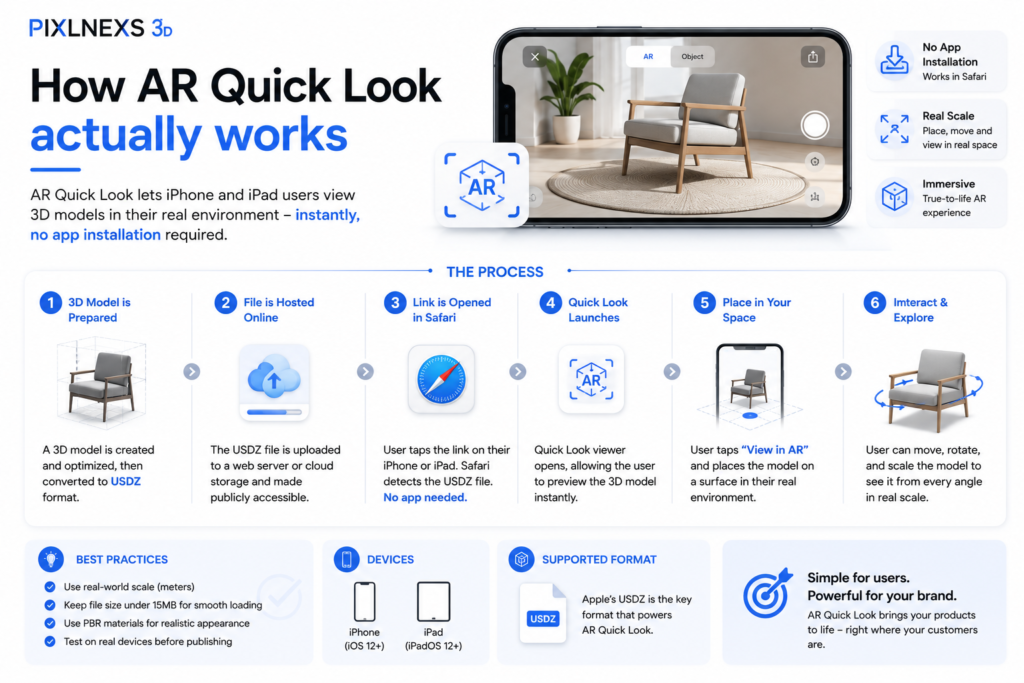
AR Quick Look is a system level viewer baked into iOS, iPadOS and macOS. When Safari (or a native app) hits a USDZ file referenced correctly, the OS opens it in a full screen AR viewer that uses ARKit to detect surfaces and let the user place, scale and rotate the model. There is no SDK to integrate and nothing to install, which is exactly what makes it so useful for marketing pages.
The most common trigger is a plain HTML anchor tag with the rel="ar" attribute wrapping an image:
<a rel="ar" href="/models/chair.usdz">
  <img src="/images/chair.jpg" alt="View this chair in AR">
</a>
On a supported device, tapping that link launches Quick Look directly. Apple’s official reference for the markup, banner options and supported attributes lives in the Apple Developer documentation. You can also append parameters to the URL for things like a call to action banner, custom price text or a checkout link, which is handy for shoppable AR.
How to create a USDZ file for AR Quick Look (step by step)
Step 1: Start with a clean, real world scaled model
AR is unforgiving about scale. A model authored in centimeters that should be in meters shows up either tiny or enormous when placed. Before anything else, confirm your source model sits at real world dimensions with its origin at a sensible anchor point (usually the base center, so it “sits” on the detected floor or table). Triangulate the mesh, remove hidden interior faces and weld stray vertices. Quick Look renders exactly what you give it, warts and all.
Step 2: Use PBR materials and bake your textures
AR Quick Look supports physically based rendering (PBR): base color, metallic, roughness, normal, ambient occlusion and emissive maps. Build your materials on the metallic roughness model and bake procedural or node based shaders down to image textures, because USDZ ships the actual texture files inside the archive. Keep textures power of two sized (1024 or 2048 px is plenty for most products) and prefer fewer, larger atlases over a pile of small maps.
Step 3: Export or convert to USDZ
You have a few routes depending on your tooling:
- Apple Reality Converter is a free macOS app that drag and drops OBJ, GLB and USD into USDZ with a live preview and material editor. The easiest path on a Mac.
- Apple’s
usdzconvert/ USD Python tools handle command-line conversion for batch pipelines, part of Apple’s USD tooling. - Blender can export USD, then package to USDZ (via add-ons or the USD tools). Good when Blender is already your authoring app.
- Web converters are fine for one offs but inspect the output; quality and material fidelity vary.
Whatever you reach for, the goal is the same: a single .usdz with materials and textures intact.
Step 4: Validate the asset
Open the result in Reality Converter or Air Drop it to an actual iPhone and tap it. Check three things: the model appears at the correct real world size, materials read correctly (no black or missing textures) and there is no floating offset above the placement surface. Apple’s usdz checker utility can flag schema problems before you ever load the file on device.
Step 5: Host and link it
Upload the USDZ to your web server or CDN and make sure it is served with the correct MIME type, model/vnd.usdz+zip. A wrong or missing content type is the single most common reason a perfectly good file refuses to launch. Then add the <a rel="ar"> link as shown above. That is the whole pipeline: model in, tappable AR out.
Optimization: keeping USDZ files fast and reliable
File size and polygon budget
AR Quick Look will happily load large files but mobile data, battery and thermals punish heavy assets and big files hurt the very conversion moment you are optimizing for. Here is what actually happens with a bloated hero model on a warm phone: the spinner sits there, the user assumes the link is broken and they bounce before ARKit ever finds a surface.
As a working range for a single product, we target well under 10 MB total (many strong assets land between 2 and 8 MB) with triangle counts in the tens of thousands rather than millions. There is no hard Apple published limit we treat as gospel here; treat these as honest production heuristics, not official ceilings and test on a mid-tier device.
Texture discipline
Textures usually dominate USDZ file size, not geometry. Compress source images, skip 4K maps unless the object genuinely needs them and reuse a single material across parts wherever you can. For background on the PBR texturing concepts that carry over to AR, the overview on Wikipedia is a solid primer.
Anchoring and interaction defaults
Decide whether your object should anchor to horizontal surfaces (furniture, electronics) or vertical ones (wall art, TVs) and set the origin accordingly. One thing worth testing in person: the default placement distance. Users should not have to back halfway across the room before the whole object pops into view.
Common mistakes we see (and how to avoid them)
- Wrong MIME type on the server. The link does nothing. Set
model/vnd.usdz+zip. - Scale chaos. Always author and verify at real world units before export.
- Black or missing materials. Usually unbaked procedural shaders or an unsupported material node. Bake to textures.
- Huge files. A 60 MB hero model that takes ten seconds to load defeats the purpose. Optimize.
- Testing only in the converter. The desktop preview is not the device. Always confirm on a real iPhone.
- Shipping only USDZ. Android users get nothing. Pair it with a GLB and
<model-viewer>.
If your end goal is letting shoppers place products in their space, USDZ is only half the story. See our hub on AR product visualization for the full cross platform picture and our guide to 3D models for VR and the metaverse if you need the same assets to work beyond AR. Ready to use, AR-optimized models are available at store.pixlnexs.com.
Frequently asked questions
What is a USDZ file used for?
The USDZ format bundles the 3D model with its textures into one single portable file, which is used in Apple’s AR Quick Look. It is commonly employed for allowing users of iPhones and iPads to be able to view and place any 3D product or art in the room in which they are located by simply clicking on a link.
Does AR Quick Look work without an app?
Yes. AR Quick Look is built into iOS, iPadOS and macOS, so a correctly linked USDZ launches the system AR viewer straight from Safari or a Messages thread. That zero install experience is the main reason USDZ is popular for shoppable AR.
Can I use a GLB file for AR Quick Look on iPhone?
No. AR Quick Look only reads USDZ natively. You can convert a GLB to USDZ and ship both formats: GLB for Android and the web, USDZ for iOS. Our step by step GLB to USDZ guide covers the conversion in detail.
How big should a USDZ file be for AR Quick Look?
However, there is no set standard, but generally for one single product, we try to keep well under 10MB, while many excellent assets are found within the range of 2-8MB with tens of thousands polygons. Such small file sizes ensure fast loading on mobile devices and benefit the conversion phase.
Why does my USDZ file not open in AR?
The most common cause is the server returning the wrong MIME type; it must be model/vnd.usdz+zip. Other culprits are an unsupported device or browser, a corrupted export or linking without rel="ar". Confirm the file opens when AirDropped to the device to isolate hosting issues.
What tools create USDZ files?
On macOS, Apple’s free Reality Converter is the simplest option. For pipelines, Apple’s USD command line tools (usdzconvert, usdchecker) handle batch conversion and validation. Blender can export USD and package USDZ and several web converters work for one off files.
Do USDZ files support animation and PBR materials?
Yes to both. AR Quick Look supports physically based (metallic roughness) materials with base color, metallic, roughness, normal, ambient occlusion and emissive maps and it supports skeletal and transform animation within the USD scene. Bake procedural shaders to textures for reliable results.
Can I add a Buy button or price to AR Quick Look?
Yes. AR Quick Look supports a native call to action banner you configure through URL parameters and meta information, letting you show a title, price text and an action link for shoppable AR. Apple’s developer documentation lists the supported parameters.
Related guides
- AR Product Visualization: Let Shoppers Place Products in Their Room (hub)
- How to Convert a GLB to USDZ for iOS AR (Step by Step)
- 3D Models for VR and the Metaverse: Optimization and Format Guide






Leave a Reply