

Quick answer: To install the 3D product viewer to WooCommerce, two things are required: the 3D model of the product itself (GLB/glTF) and rendering capabilities. The quickest and easiest way is to use the Google’s web component which is included in your theme template files or can be added using shortcode/block. It handles rotate, zoom and AR on phones out of the box. If you don’t have clean models, that’s where the project actually stalls. The viewer is
Production-grade 3D assets are not. For most stores, the smart split is to have a studio produce optimized, web-ready GLBs (or buy them) and then drop them into a lightweight viewer you control. We’d pair done for you 3D models from store.pixlnexs.com (or a custom build by Pixlnexs Animation Studio) with <model-viewer> so you own the asset, keep page speed sane and avoid per-seat plugin lock-in.
By the Pixlnexs Animation Studio team, we produce AI video and 3D content and run store.pixlnexs.com, so this reflects real production experience.
What a “3D product viewer” actually is in WooCommerce
A 3D product viewer replaces (or supplements) the static product image with an interactive object the shopper can rotate, zoom and inspect from any angle. On mobile, the better viewers also offer AR, placing the product in the customer’s room through the phone camera. Under the hood, almost every modern viewer renders a glTF/GLB file with WebGL. glTF is the open, royalty-free 3D transmission format maintained by the Khronos Group and GLB is its single-file binary version, the format you’ll deploy 95% of the time. If you remember one thing, make it this: the file format is the product, the viewer is just the player.
That distinction matters more than it sounds when you are choosing what to buy. Plenty of WooCommerce stores sign up for a SaaS “3D viewer” plugin and then realize the hard part was never the viewer. It was getting accurate, optimized 3D models of their catalog. So before you compare tools, separate the two jobs: (1) get the models and (2) embed the viewer.
The three ways to add a 3D product viewer to WooCommerce
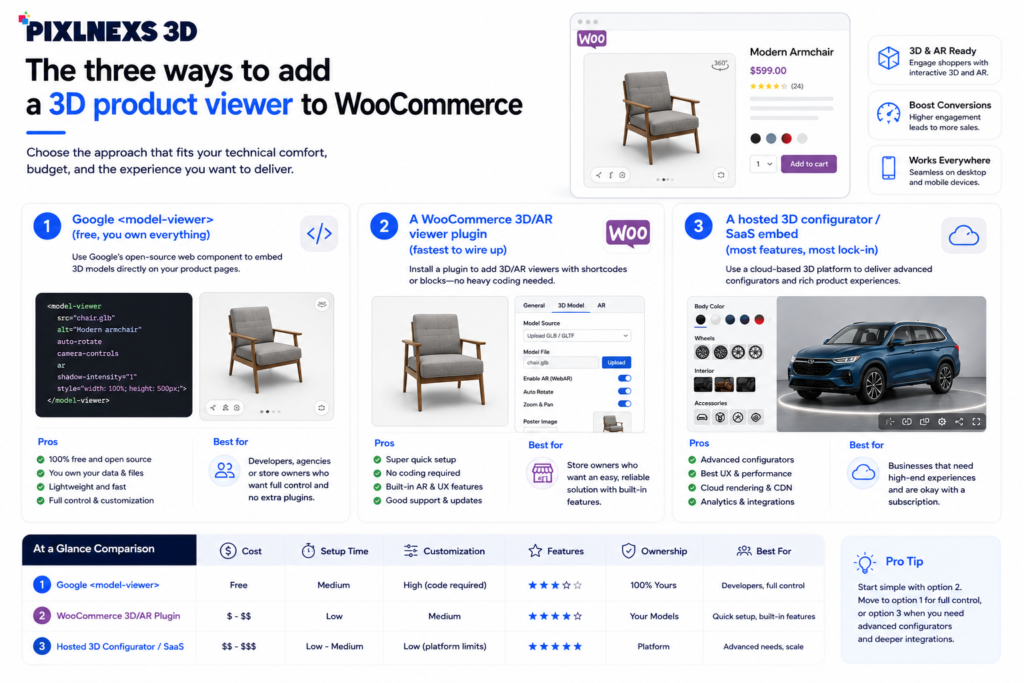
1. Google <model-viewer> (free, you own everything)
<model-viewer> is an open-source web component from Google that renders a GLB with built-in orbit controls, zoom and AR (Scene Viewer on Android, Quick Look on iOS). You add one script tag and one element. The cost is $0, there’s no per-product license and it works in any theme. The trade-off: you’re on the hook for hosting the GLB and for any UI polish past the defaults.
Here’s the minimal embed, which you can drop into a product description, a block or your single-product template:
<script type="module" src="https://unpkg.com/@google/model-viewer/dist/model-viewer.min.js"></script>
<model-viewer
  src="/wp-content/uploads/3d/chair.glb"
  alt="3D model of the Nordic lounge chair"
  camera-controls
  auto-rotate
  ar
  shadow-intensity="1"
  style="width:100%;height:480px">
</model-viewer>
To make it reusable, register a short code in your child theme’s functions.php and store the GLB URL per product (a simple custom field or ACF) then output the component from the short code. This keeps page weight low because you load only the models a shopper actually views.
2. A WooCommerce 3D/AR viewer plugin (fastest to wire up)
Several plugins add a 3D/AR tab or replace the gallery with a viewer, usually with an admin field to upload a GLB per product. These are genuinely convenient. Non-developers can manage models straight from the product editor and many bundle AR and configurator features. The honest caveats: you take on a recurring subscription, you may hit per-product or per-view limits and you’re tied to the vendor’s roadmap and uptime. And they still require you to supply the GLB.
3. A hosted 3D configurator / SaaS embed (most features, most lock-in)
Full configurator platforms let shoppers change colors, materials and components in real time, then sync the choice back to the WooCommerce cart. This is the right call for highly customizable products like furniture, apparel and automotive. It’s also the heaviest commitment. Pricing scales with usage, the 3D data lives on their servers and migrating away later is real work. We cover the build vs buy math in depth in our 3D Configurator Software vs a Done-For-You Studio guide.
Comparison: which approach fits which store
The table below compares the approaches on real, qualitative dimensions. We’ve deliberately left out competitor prices and made-up conversion numbers. Pricing changes constantly and varies by plan, so check current figures on each vendor’s site before you commit.
| Dimension | <model-viewer> (DIY) | WooCommerce viewer plugin | Hosted configurator SaaS |
|---|---|---|---|
| Upfront cost | Free (dev time only) | Low–moderate subscription | Moderate–high subscription |
| Who manages models | You, via custom field | Admin upload per product | Vendor dashboard |
| Asset ownership | Full, files on your server | Full, you host the GLB | Often hosted by vendor |
| AR on mobile | Built in (Quick Look / Scene Viewer) | Usually yes | Usually yes |
| Live material/option config | DIY (extra dev) | Limited | Strong |
| Page-speed control | High (you tune loading) | Medium | Lower (external scripts) |
| Lock-in risk | None | Low–medium | High |
| Still need a 3D model? | Yes | Yes | Yes |
Notice the last row is identical across all three. That’s the whole point: no viewer creates the model for you. The lever that decides whether your 3D rollout looks premium or amateur is the quality and optimization of the GLB itself.
Where the models come from (the part nobody warns you about)
A web-ready product model is not the same thing as a CAD file or a hero render. It needs to be retopologized to a sane polygon count, carry baked physically-based (PBR) textures, sit at the right scale and origin for AR and compress well so it loads in a couple of seconds on mobile. Get this wrong and your “3D viewer” turns into a 40 MB download that spins forever, which hurts conversion instead of helping it.
Here’s what that looks like in practice: a designer hands over a gorgeous 60 MB GLB straight out of Blender, it looks flawless on their desktop over fast wifi and then a shopper on 4G stares at a loading spinner and bounces. You have three realistic sourcing options:
- Buy ready-made GLBs for common products from a marketplace like store.pixlnexs.com. Fastest and cheapest when a close match exists.
- Commission custom models of your exact SKUs from a studio when accuracy matters (your packaging, your colorways, your branding).
- Build them in-house if you already have 3D artists and a pipeline. Viable, but slow to scale across a catalog.
At Pixlnexs Animation Studio we do both: production of optimized, AR-ready GLBs for specific SKUs, plus a marketplace of pre-built models you can license and embed today. Because we deliver standard GLB, the assets work in <model-viewer>, in any plugin or in a configurator. You’re never locked to one viewer.
Step-by-step: the lightweight, own-it setup
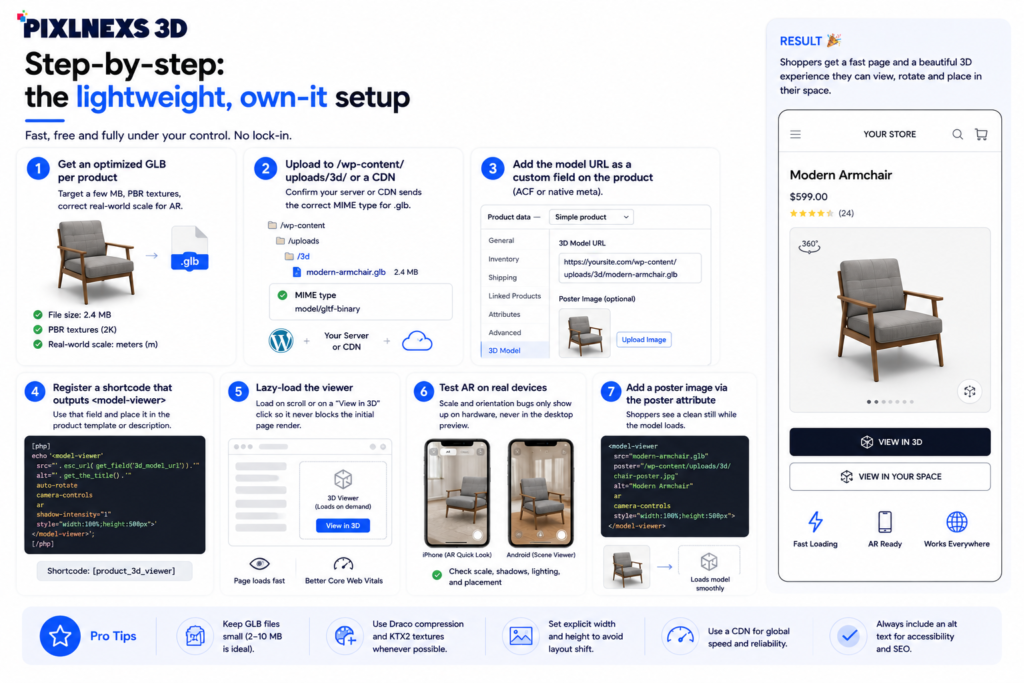
- Get an optimized GLB per product (target a few MB, PBR textures, correct real-world scale for AR).
- Upload it to
/wp-content/uploads/3d/or a CDN and confirm your server or CDN sends the correct MIME type for.glb. - Add the model URL as a custom field on the product (ACF or native meta).
- Register a shortcode in your child theme that outputs
<model-viewer>using that field and place it in the product template or description. - Lazy-load the viewer (load on scroll or on a “View in 3D” click) so it never blocks the initial page render.
- Test AR on a real iPhone and a real Android device. Scale and orientation bugs only show up on hardware, never in the desktop preview.
- Add a poster image via the
posterattribute so shoppers see a clean still while the model loads.
If you want to support color or material switching down the road, you can swap textures or sub-models on the same component without touching the rest of the page. It’s a clean upgrade path that doesn’t drag you onto a SaaS platform.
Who should choose what
- Small/medium store, handful of hero products, wants to own the asset: Use
<model-viewer>and license or commission GLBs. Lowest ongoing cost, full control. - Non-technical team that needs to manage models from wp-admin: A WooCommerce 3D/AR plugin. Accept the subscription for the convenience, but still source quality GLBs.
- Highly configurable products (furniture, apparel, vehicles): A hosted configurator. Read our automotive configurator guide first to scope it realistically.
- You want AR try-on, not just inspection: Plan for it separately. See AR Try-On for eCommerce: cost and setup.
- You don’t have models yet (most stores): Start with the asset, not the tool. Grab a match from store.pixlnexs.com or brief us for your SKUs.
Performance and SEO notes that protect conversion
A 3D viewer only helps if it doesn’t tank your page speed. Keep GLBs small, lazy-load behind a click or on scroll, serve over a CDN and always provide a poster still. Because the model itself isn’t crawlable text, keep your normal product images, structured data and copy intact. The 3D viewer should augment the gallery, not replace your SEO surface. WebGL is widely supported across modern browsers and <model-viewer> degrades gracefully to the poster image where it isn’t. For background on the rendering stack, see WebGL and the open glTF format.
Ready-to-embed models and done-for-you 3D
In case the blocker is the assets and in most cases, this is the one, there are two ways how we can help. Check out or license browser-ready, AR-enabled GLBs at store.pixlnexs.com or let Pixlnexs Animation Studio create a customized 3D model of your exact SKU in GLB format that will be integrated seamlessly into or any plug-in of your choice. You get the files; you get the performance and you save yourself from viewer per-seat pricing. We’ll assess how fast you could have a 3D product viewer on your site.
Frequently asked questions
Do I need a plugin to add a 3D product viewer to WooCommerce?
Wrong. You can integrate Google’s free component using script tag and shortcode without any plugin. A plugin just provides additional convenience (upload per product) along with built-in AR/configuration options. In either case, you will need a GLB file.
What file format do I need for the 3D model?
Use GLB (the single-file binary version of glTF). It’s the open, royalty-free standard supported by virtually every modern viewer, plugin and AR system. Avoid shipping raw CAD or huge OBJ/FBX files to the browser. Convert and optimize to GLB first.
Will a 3D viewer slow down my WooCommerce site?
It can if you eagerly load big models on every page. Don’t go over a few megabytes on your GLBs, lazily load the viewer when the user scrolls or clicks “View in 3D” Do it right and the effect on the initial load of the page will be minimal.
Does the 3D viewer support AR on phones?
AR is built-in for as Quick Look for iOS or Scene Viewer for Android as long as your model is properly scaled in real-world units. Most other plugins and SaaS configurators offer AR as well. Always test your models on actual devices.
Where do I get the 3D models if I don’t have any?
Three possible solutions: Buy pre-made GLBs from a marketplace such as store.pixlnexs.com or get custom models of your exact product from a studio or build your own if you have 3D artists on your team. For most stores it is quicker and cheaper to purchase or commission them.
Should I build my own configurator or buy a SaaS one?
In case you have only require rotation, zoom, AR visualization, the free option should suffice. In case the shoppers have to configure colors/materials/options in real time, which will update the shopping cart, a hosted or custom configurator should be used. The build vs. buy comparison is detailed here.
Related guides
- Build vs Buy: 3D Configurator Software vs a Done-For-You Studio
- AR Try-On for eCommerce: What It Costs and How to Add It
- 3D Product Visualization for Automotive: Configurators & Showrooms
- Browse ready-to-embed 3D models on store.pixlnexs.com









Leave a Reply