
Quick answer:
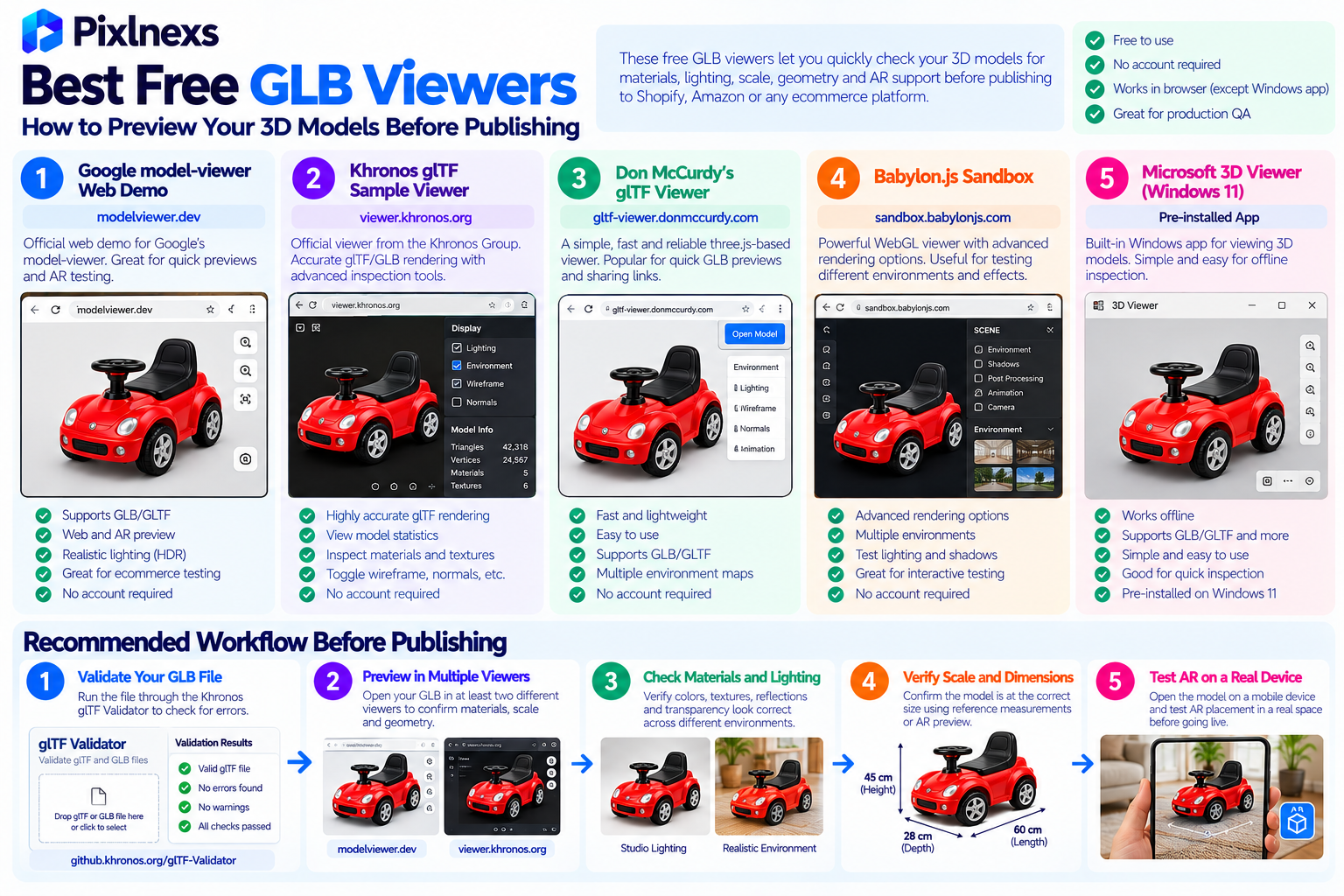
The best free GLB viewers in 2026 are Google’s model-viewer web demo at modelviewer.dev, the Khronos glTF Sample Viewer at viewer.khronos.org, Don McCurdy’s three.js-based viewer at gltf-viewer.donmccurdy.com, Babylon.js Sandbox at sandbox.babylonjs.com and Microsoft’s 3D Viewer on Windows 11. Each is free, browser-based (except Microsoft’s desktop app) and requires no account or installation. For production QA before publishing a 3D model to Shopify, Amazon or any ecommerce platform, the correct workflow is to run the GLB through the Khronos glTF Validator first to catch structural errors, then preview in at least two viewers to confirm materials, scale and geometry look correct across different rendering engines, and finally test AR placement on a real mobile device before the model goes live.
By Bali Balaji, Pixlnexs Studio. Pixlnexs validates every GLB and USDZ file through a multi-viewer QA workflow before delivering to clients or submitting to ecommerce platforms and this guide reflects the exact toolset and sequence our team uses on every model, including what each viewer catches that others miss.
Key Takeaways
- No single GLB viewer catches everything. Different viewers use different rendering engines (Three.js, Babylon.js, Filament) and different lighting environments a material problem that is subtle in one viewer may be obvious in another. Pre-publication QA uses at least two.
- The Khronos glTF Validator is not a viewer it is a structural correctness tool that must run before any visual preview. It catches errors that cause silent failures in viewers: invalid buffer references, unsupported extensions, malformed JSON in the GLB header.
modelviewer.devis the closest preview to what Shopify’s native 3D viewer renders, since both use Google’s Filament rendering engine. It is the most useful single pre-Shopify check.- AR placement preview requires a real mobile device no desktop viewer accurately simulates AR behavior on iOS AR Quick Look or Android Scene Viewer. Browser simulators cannot test AR.
- File size and loading behavior must be verified in a real network context, not just in a local file preview. A GLB that opens instantly on a local filesystem may load slowly when served over a real CDN on a mobile data connection.
- USDZ files require Apple’s own tooling or a macOS Quick Look preview for accurate QA third-party viewers often render USDZ with approximations that do not reflect how AR Quick Look will actually display the model on a customer’s iPhone.
Why Previewing Your GLB Before Publishing Is Non-Negotiable
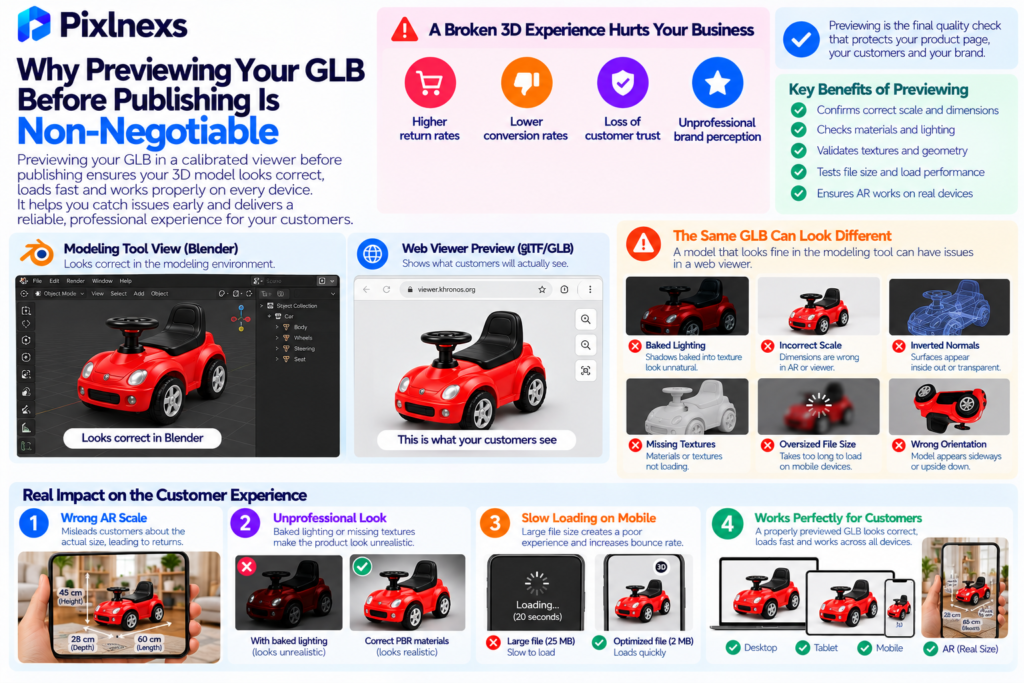
Publishing a 3D model to a product page without previewing it in a calibrated viewer first is one of the most reliable ways to ship a broken customer experience. The problems that previewing catches baked lighting in the albedo, incorrect scale, inverted normals, missing textures, oversized file weight are invisible during the modeling and export process but immediately apparent to a customer who loads the viewer on a real device.
The cost of those problems is not just a bad-looking product page. A 3D model that shows a product at the wrong AR scale gives the customer misleading spatial information at the exact moment they are deciding whether the product will fit in their space. A model with baked lighting artifacts looks unprofessional and undermines trust in the brand. A model that takes 20 seconds to load on a mobile data connection is worse than no 3D at all, because it adds a spinner to the page that delays the customer reaching the product information they need.
Pre-publication preview is the stage that converts a file that was produced correctly into a file that is confirmed correct before any customer ever sees it.
What GLB Preview Catches That the Modeling Tool Does Not
3D modeling tools (Blender, Maya, Cinema 4D) show you the model inside the modeling environment with the modeling tool’s own renderer, its own lighting setup and its own understanding of the file. Exporting a GLB and opening it in a web-based viewer shows you what a browser will actually render when the file is loaded by a customer.
The two views frequently differ in ways that matter:
- Lighting in the modeling tool may illuminate the model more flatteringly than Filament or Babylon.js does in a browser viewer
- The modeling tool shows the model in its native coordinate system a file that will appear upside down or sideways in a web viewer looks correct in the modeling tool
- Baked lighting errors are often invisible in the modeling tool because the modeling renderer uses the baked data intentionally they are only visible in a PBR viewer where the baked shadows conflict with real-time lighting
- File size and loading behavior are invisible in the modeling tool because the file is opened from disk a web viewer with network throttling reveals actual load performance
The GLB Pre-Publication QA Workflow: Correct Sequence
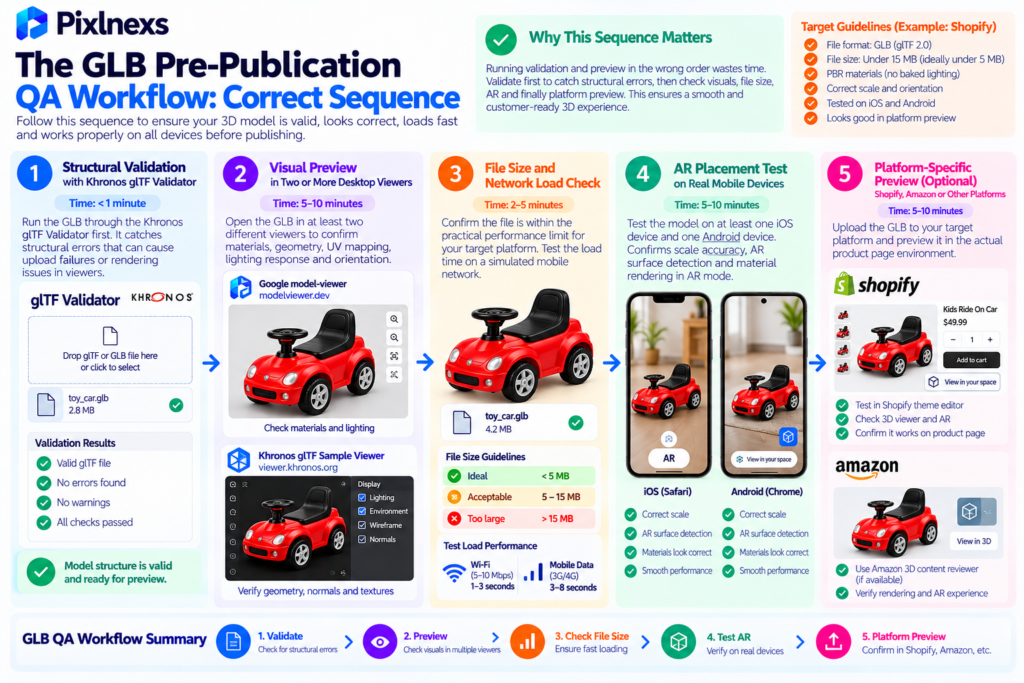
Before reviewing specific tools, the sequence matters. Running validation and preview in the wrong order wastes time you may spend time evaluating a model’s materials in a viewer before discovering it has a structural error that would cause it to fail platform upload anyway.
The Correct Pre-Publication GLB QA Sequence
Step 1: Structural validation with the Khronos glTF Validator. Run first, before any visual preview. Catches errors that cause upload failures or silent rendering failures in viewers. Takes under one minute.
Step 2: Visual preview in two or more desktop viewers. Confirms materials, geometry, UV mapping, lighting response and orientation. Catch material problems, inverted normals and scale issues.
Step 3: File size and network load check. Confirm the file is within the practical performance ceiling for the target platform. For Shopify, this means under 15MB and ideally under 5MB.
Step 4: AR placement test on real mobile devices. Test on at least one iOS device and one Android device. Confirms scale accuracy, AR surface detection and material rendering in AR mode.
Step 5: Platform-specific preview (optional but recommended). For Shopify, preview via the Shopify theme editor’s product preview with the GLB uploaded. For Amazon, use their 3D content reviewer tool if available in your account.
Best Free GLB Viewers for Previewing 3D Models
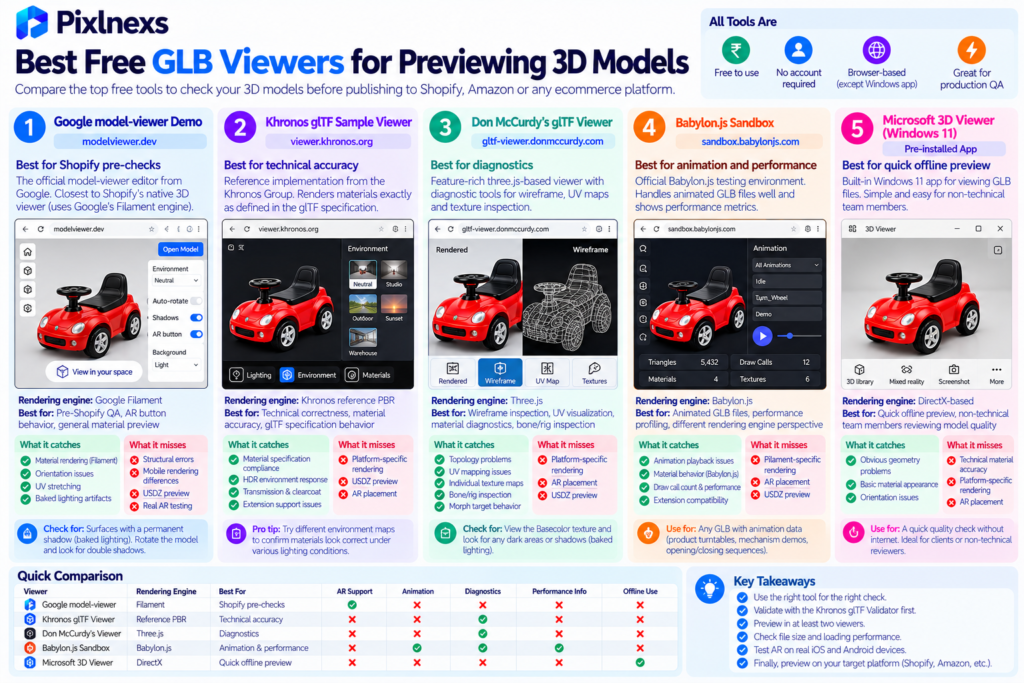
1. Google model-viewer Demo (modelviewer.dev): Best for Shopify Pre-Checks
Rendering engine: Google Filament
Best for: Pre-Shopify QA, AR button behavior, general material preview
The <model-viewer> project’s own demo editor at modelviewer.dev is the closest desktop approximation of what customers will see in Shopify’s native 3D viewer both use Google’s Filament rendering engine under the hood. What renders correctly in modelviewer.dev will render correctly in Shopify’s native viewer. What looks wrong here will look wrong there.
The editor accepts a GLB file via drag-and-drop or URL, renders it with Filament’s PBR pipeline and displays an AR button if the browser and device support AR. On a desktop browser, the AR button launches WebXR (on Chrome) rather than the mobile AR modes your customers will use for AR Quick Look and Scene Viewer testing, you still need a real mobile device.
What it catches: material rendering under Filament lighting, orientation issues, UV stretching, albedo bake-lighting artifacts (these appear as double shadows and become obvious against the neutral viewer lighting).
What it misses: structural errors in the GLB (needs the Validator for that) mobile rendering differences, USDZ rendering for iOS AR Quick Look.
The specific thing to check here: after loading your GLB, slowly rotate the model and watch for surfaces that maintain a “shadow side” even when rotated to put the light source on that side. This is the baked-lighting symptom and it is very visible in modelviewer.dev if it is present.
2. Khronos glTF Sample Viewer (viewer.khronos.org): Best for Technical Accuracy
Rendering engine: Reference PBR renderer from the Khronos Group (the body that maintains the glTF standard)
Best for: Technical correctness, material accuracy, comparing against glTF specification behavior
The Khronos glTF Sample Viewer is the reference implementation for how glTF models are supposed to render according to the specification. It is maintained by the same organization that publishes the glTF standard which means it renders materials the way the standard defines they should be rendered, rather than making implementation-specific choices.
For material accuracy evaluation confirming that metalness, roughness, normal maps and emissive maps are behaving as intended the Khronos viewer is the most authoritative reference. A model that renders correctly here is behaving according to spec.
What it catches: material specification compliance, extension support issues, HDR environment lighting response, transmission and clearcoat material behavior.
What it misses: platform-specific rendering differences (each ecommerce platform’s viewer makes implementation choices that deviate from the reference) USDZ preview, AR placement.
Pro tip: the Khronos viewer supports multiple environment maps switch between the available lighting environments to confirm that your materials look correct under different lighting conditions, not just under the default neutral environment.
3. Don McCurdy’s glTF Viewer (gltf-viewer.donmccurdy.com): Best for Diagnostics
Rendering engine: Three.js
Best for: Wireframe inspection, UV visualization, material diagnostics, bone/rig inspection
Don McCurdy’s viewer is one of the most used diagnostic tools among 3D artists and developers because it surfaces more technical information about the model than any other free viewer. It shows wireframe overlay, UV mapping visualization, individual texture maps, morph target weights and (for rigged models) bone visualization.
For pre-publication QA on ecommerce product models, the diagnostic modes are particularly valuable:
- Wireframe mode: reveals topology problems, poles, stray geometry and n-gons that are invisible in solid view
- UV visualization: shows the UV layout and immediately reveals any stretching, overlapping islands or wasted UV space that will affect texture quality
- Individual map view: shows the base color, metallic, roughness and normal maps independently which makes it easy to spot baked lighting in the albedo (the albedo should be flat color with no shadows; any dark areas that do not correspond to material color are baked lighting)
What it catches: topology problems, UV issues, individual texture map problems, bone hierarchy issues in rigged models, morph target behavior.
What it misses: platform-specific rendering, AR placement, USDZ behavior.
The specific thing to check here: switch to the “Basecolor” texture view and look for any darkening in areas that should be uniformly colored. Any shadows visible in the base color texture are baked lighting that will cause double-shadow artifacts in ecommerce viewers.
4. Babylon.js Sandbox (sandbox.babylonjs.com): Best for Animation and Performance
Rendering engine: Babylon.js
Best for: Animated GLB files, performance profiling, a different rendering engine perspective
Babylon.js Sandbox is the official testing environment for the Babylon.js rendering engine, which powers a significant portion of web-based 3D experiences including some ecommerce viewers. It handles animated GLB files particularly well animation clips are listed and can be played individually, which makes it the best free tool for confirming that animation data in a GLB is present, correctly named and playing as expected.
The Sandbox also includes a basic performance profiling display draw call count, triangle count, material count which is useful for confirming that a model is within the performance budget appropriate for its complexity before deploying it.
What it catches: animation playback issues, material behavior in Babylon.js renderer, draw call count and performance metrics, extension compatibility.
What it misses: Filament-specific rendering (Babylon uses a different PBR implementation) AR placement, USDZ preview.
When to use it specifically: for any GLB that includes animation data product turntable animations, mechanism demonstrations, opening and closing sequences. Babylon.js is the most reliable free tool for confirming that animation is working correctly before publishing.
5. Microsoft 3D Viewer (Windows 11): Best Offline Desktop Option
Platform: Windows 11 (pre-installed)
Rendering engine: DirectX-based
Best for: Quick offline desktop preview, non-technical team members reviewing model quality
Microsoft’s built-in 3D Viewer in Windows 11 opens GLB files natively right-click a GLB file in Windows Explorer and “Open with 3D Viewer.” It provides a basic interactive viewer with rotate and zoom controls and renders GLB materials using a DirectX-based PBR implementation.
For non-technical team members brand managers, marketing directors, clients reviewing model quality 3D Viewer provides a quick, no-installation way to open and inspect a GLB file without navigating to a web tool. The rendering quality is sufficient for a quick quality check but not for technical material validation.
What it catches: obvious geometry problems, basic material appearance, orientation issues.
What it misses: technical material accuracy (the DirectX renderer makes different implementation choices from Filament or Babylon) AR placement, anything platform-specific.
The Khronos glTF Validator: Run This Before Any Viewer
The glTF Validator at validator.khronos.org is not a viewer it does not render the model at all. It analyzes the GLB file’s structure against the glTF 2.0 specification and reports errors and warnings.
Running the Validator before opening a GLB in any viewer catches structural errors that cause either upload failures or silent rendering failures:
- Errors: structural problems that violate the glTF specification and will cause the model to fail to load or render incorrectly in compliant viewers. These must be fixed before publishing.
- Warnings: issues that are not specification violations but may indicate quality problems unused nodes, textures larger than recommended, unsupported extension usage.
| Validator Message Type | What It Means | Action Required |
|---|---|---|
| Error | Structural violation of glTF 2.0 spec | Must fix before publishing will cause upload failure or silent render failure |
| Warning | Non-critical issue or quality concern | Investigate some warnings indicate quality problems worth fixing before publishing |
| Info | Statistical information about the file | No action required useful for confirming triangle count, texture count, material count |
| Hint | Optimization suggestion | Consider often flags texture size or unused assets worth cleaning up |
The most important glTF Validator output for ecommerce GLB files is the Info section, which reports the total triangle count, material count, texture count and texture resolution these are the numbers that determine whether the file will perform within Shopify’s practical performance ceiling and Amazon’s technical submission requirements.
How to Test GLB AR Placement Before Publishing
AR placement testing on real devices is the step that no desktop viewer replaces. The specific behaviors that AR Quick Look and Scene Viewer produce surface detection, scale rendering, anchor stability, model lighting under real-world ambient conditions are not simulated by any desktop tool with sufficient accuracy to serve as a substitute for real device testing.
Testing AR Quick Look on iOS
To test iOS AR Quick Look from a GLB/USDZ file before it is published on any platform:
- Upload the USDZ file to a web server or cloud storage accessible over HTTPS (AR Quick Look requires HTTPS it will not load from a local file path on a web server)
- Open the URL on an iPhone or iPad in Safari
- Tap the AR Quick Look button that appears in the file preview
- Confirm: the model appears at correct real-world scale, surfaces are detected correctly, materials render naturally under the room’s ambient lighting and the model anchors stably to the detected surface
For a full device testing matrix and pre-launch checklist covering AR scale accuracy, material rendering on mobile and Core Web Vitals impact, see our guide on how to test 3D and AR on product pages before launch.
Testing Scene Viewer on Android
To test Android Scene Viewer:
- Host the GLB file on a web server accessible over HTTPS
- Create a Scene Viewer intent URL using Google’s format:
https://arvr.google.com/scene-viewer/1.0?file=[YOUR-GLB-URL] - Open that URL on an ARCore-compatible Android device in Chrome
- Confirm scale, surface detection and material rendering
The Scale Check That Cannot Be Done on Desktop
Place the AR model next to a physical reference object a tape measure, a chair, a known-size household item and confirm the proportions match the product’s real dimensions. A model that appears at incorrect scale in this test was exported in the wrong unit system and needs re-export, not re-modeling.
This test cannot be approximated on a desktop viewer because desktop viewers do not provide a real-world scale reference. Scale errors are only detectable when the model is placed in a real physical environment against real objects.
How Free GLB Viewers Support the Full Pre-Publication Workflow
The five viewers and the Validator cover different checkpoints in the pre-publication workflow. Understanding which tool serves which checkpoint prevents both redundant checking and missed gaps.
Viewer Comparison for Pre-Publication QA
| Tool | Primary Use | Rendering Engine | Best Pre-Publication Check |
|---|---|---|---|
| Khronos glTF Validator | Structural validation | None (code analysis) | Run first catches upload-breaking errors |
| modelviewer.dev | Shopify preview equivalent | Google Filament | Material quality, baked lighting check |
| Khronos glTF Sample Viewer | Spec-accurate reference | Khronos reference PBR | Material specification accuracy |
| Don McCurdy glTF Viewer | Diagnostics and inspection | Three.js | Wireframe, UV, albedo texture map inspection |
| Babylon.js Sandbox | Animation and performance | Babylon.js | Animation clips, draw call count, performance |
| Microsoft 3D Viewer | Quick offline desktop check | DirectX | Non-technical team review and quick sanity check |
| Real iOS device (AR Quick Look) | iOS AR placement test | Apple AR Quick Look | Scale accuracy, surface detection, iOS rendering |
Common GLB Problems Caught in Pre-Publication Preview
Understanding what each problem looks like in a viewer and what causes it makes pre-publication QA faster and more productive.
Baked Lighting in the Albedo Texture
What it looks like in the viewer: one side of the product is permanently darker than the other, regardless of how the model is rotated. The shadow does not move when the product rotates it stays in the same position on the surface.
What causes it: the color texture was exported from an offline renderer with shadows and highlights pre-baked into the image.
Where to check: Don McCurdy’s viewer in “Basecolor” texture mode shows it most clearly. modelviewer.dev also reveals it when the model is rotated slowly.
How to fix: rebuild the albedo texture without lighting baked in. The flat color texture should contain only the product’s actual color with no shadows or highlights.
Inverted Normals
What it looks like: surfaces appear black or become invisible at certain camera angles, creating a swiss-cheese appearance where parts of the model go dark or disappear.
What causes it: the normal direction of the affected faces is pointing inward rather than outward the surface is mathematically facing the wrong way.
Where to check: visible in any viewer most obvious in modelviewer.dev or the Khronos Sample Viewer against a neutral background.
How to fix: in the modeling tool, select the affected faces and flip their normals.
Incorrect Real-World Scale
What it looks like in a desktop viewer: the model appears disproportionately large or small compared to environment elements. In AR: the product appears at obviously the wrong size next to real objects.
What causes it: the model was exported in the wrong unit system typically centimeters when meters was required, producing a model that is 100 times too small or the reverse.
Where to check: only detectable against a real-world reference in AR. Desktop viewers do not provide a reliable scale reference.
How to fix: re-export with the correct unit scaling. This is always an export settings fix, not a geometry rebuild.
Missing or Black Textures
What it looks like: the model renders as a solid gray or black object with no surface detail.
What causes it: textures were not embedded in the GLB the file references external texture paths that are not included in the self-contained GLB container.
Where to check: any viewer reveals this immediately. The Khronos Validator will also report missing texture references.
How to fix: re-export as a properly packaged GLB with textures embedded. In Blender, ensure “Export Materials” is checked and the export mode is “glTF Binary” not “glTF Separate.”
GLB Preview in the Context of Platform Submission
Pre-publication preview is not only about whether the model looks correct it is about whether it will be accepted by the target platform and perform correctly within that platform’s specific implementation.
Pre-Shopify Preview Checklist
Before uploading a GLB to Shopify product media:
- Khronos Validator: zero errors
- modelviewer.dev: materials correct, no baked lighting artifacts, orientation correct (product right-side up, facing front)
- File size: under 15MB (ideally under 5MB)
- AR test on iOS: USDZ launches AR Quick Look, scale correct against tape measure
- AR test on Android: GLB launches Scene Viewer, scale matches iOS
For our complete Shopify GLB requirements guide including size limits, material requirements and upload process, see our article on GLB files for Shopify: requirements, size limits and best practices.
Pre-Amazon Submission Preview Checklist
Amazon’s 3D content review checks both technical compliance and visual accuracy. The pre-submission checklist adds:
- Dimensions verified against the ASIN’s listed product measurements
- No baked lighting (Amazon reviewers specifically check for this)
- File size within Amazon’s current category limit
- Visual accuracy confirmed model matches the listed product, not a generic version of it
For our full guide to Amazon 3D submission including technical requirements and common rejection reasons, see our article on how to add interactive 3D to Amazon product listings.
Conclusion
Free GLB viewers are the quality gate between a model that was produced correctly and a model that is confirmed correct before any customer sees it. Used in the right sequence Validator first, then multiple visual viewers, then AR on real devices they catch the problems that are invisible in the modeling tool and prevent the customer-facing failures that are expensive to diagnose and embarrassing to deliver.
The five-minute pre-publication workflow (Validator → modelviewer.dev → file size check → mobile AR test) is the difference between a 3D product experience that builds customer confidence and one that undermines it. Given that the entire value proposition of 3D on a product page is communicating accurate product information, a broken viewer or an inaccurate AR placement works directly against the reason the feature exists.
For brands producing GLB files at volume a full product catalog, multiple finish variants, a regular release cadence building this validation sequence into the production handoff as a required step before any file is accepted is the most reliable way to maintain consistent quality at scale.
Need GLB Files That Pass Pre-Publication QA on the First Check?
Pixlnexs validates every GLB and USDZ file through a full multi-viewer and real-device QA pass before delivery correct scale, clean albedo, no structural errors, optimized for your target platform.
Get a Quote for Production-Ready 3D Models Talk to Our TeamFrequently Asked Questions
What Is the Best Free GLB Viewer for Ecommerce QA?
For ecommerce pre-publication QA, modelviewer.dev is the most useful single viewer because it uses the same Filament rendering engine as Shopify’s native 3D viewer what looks correct here will look correct in Shopify. For a complete QA workflow, pair it with the Khronos glTF Validator for structural checking and Don McCurdy’s glTF Viewer for texture inspection. No single viewer catches everything.
Can I Preview a GLB File Without Installing Any Software?
Yes. All of the recommended viewers (modelviewer.dev, Khronos glTF Sample Viewer, Don McCurdy’s viewer, Babylon.js Sandbox) are browser-based and require no installation drag and drop your GLB file into the browser tab and the viewer opens it immediately. The only desktop application in this guide is Microsoft’s 3D Viewer, which comes pre-installed on Windows 11.
What Is the Difference Between the Khronos glTF Validator and a GLB Viewer?
The Khronos glTF Validator is a structural analysis tool it reads the GLB file’s code and checks it against the glTF 2.0 specification, reporting errors and warnings about the file’s structure. It does not render the model visually. A GLB viewer renders the model interactively so you can evaluate visual quality. Both are necessary: the Validator catches problems that viewers miss (structural errors that cause silent rendering failures) and viewers catch problems the Validator misses (material quality issues that are technically valid but visually wrong).
Why Does My GLB Look Different in Different Viewers?
Different viewers use different rendering engines Filament (modelviewer.dev) Babylon.js (Babylon.js Sandbox) Three.js (Don McCurdy’s viewer) and the Khronos reference PBR renderer. Each engine makes slightly different implementation choices about how to interpret the glTF material specification, which produces slightly different lighting responses for the same material. This is normal and expected. The practical implication is that checking your model in multiple viewers gives a more complete picture of how it will render across different platforms since different ecommerce platforms use different rendering engines too.
How Do I Check If My GLB Is the Right Size for Shopify?
Open the Khronos glTF Validator and check the “Info” section for the total file size. Alternatively, check the file size in your operating system’s file properties. Shopify’s practical performance ceiling is under 15MB for complex products and under 5MB for most consumer products. For optimization tools to reduce file size when needed, see our guide on GLB files for Shopify: requirements, size limits and best practices.
Can I Preview USDZ Files in the Same Viewers?
USDZ is not supported by most browser-based GLB viewers it is an Apple-specific format that requires Apple tooling for accurate preview. On a Mac, the Finder previews USDZ files directly using Quick Look. On an iPhone or iPad, USDZ files hosted over HTTPS open directly in AR Quick Look in Safari. For accurate USDZ QA, the correct tool is the real device experience rather than a desktop approximation.
What Is the Most Common Problem Found During GLB Preview?
Baked lighting in the albedo texture is the most common quality problem found during pre-publication GLB preview. It is invisible during modeling (because the modeling tool uses the baked data intentionally) and only becomes obvious when the model is opened in a PBR real-time viewer where the baked shadows conflict with the viewer’s own real-time lighting. The symptom a permanently shadowed side that does not move when the model rotates is immediately visible in any web-based GLB viewer.
Do I Need to Test on a Real Mobile Device or Is a Desktop Preview Enough?
Desktop preview is not sufficient for AR placement QA. AR Quick Look and Scene Viewer only run on real mobile hardware browser simulators cannot emulate the AR surface detection, spatial anchoring and mobile-GPU material rendering that customers experience on their phones. For AR placement testing specifically, always test on at minimum one real iOS device and one real Android device before publishing. Desktop viewers are sufficient for material quality, geometry and file structure QA.
Related Guide
GLB vs glTF: the real difference and when to use each










Leave a Reply