
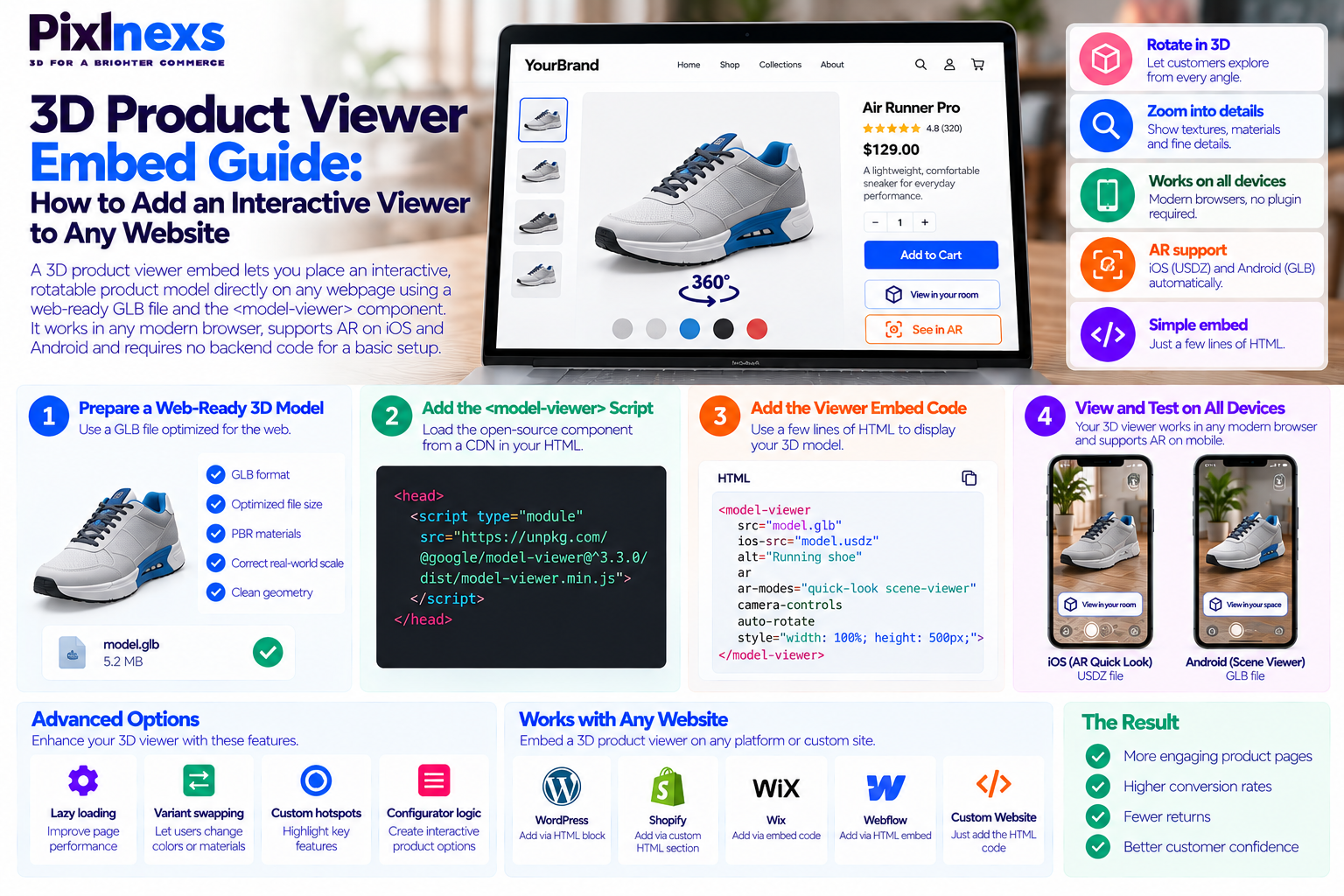
Quick answer: A 3D product viewer embed lets you place an interactive, rotatable product model directly on any webpage and the fastest way to do it is with a web-ready GLB file, the open-source
<model-viewer>web component loaded from a CDN and three lines of HTML that reference your GLB file and, optionally, a USDZ file for iOS AR Quick Look. The viewer renders in any modern browser with no plugin required, handles AR handoff to iOS and Android automatically and requires no backend code or specialist developer involvement for a basic implementation. Advanced configurations lazy loading, variant swapping, custom hotspots and configurator logic build on that same foundation.This guide covers every step from file preparation through embed to performance optimization, with copy-paste code for each stage.
By Bali Balaji, Pixlnexs Studio. Pixlnexs builds and delivers web-ready 3D product assets and advises ecommerce brands on 3D viewer implementation across Shopify, WooCommerce, custom storefronts and Amazon and this guide reflects the implementation patterns and performance practices our team uses in live production deployments.
Key Takeaways
- The
<model-viewer>web component from Google is the most widely used open-source solution for embedding interactive 3D on any website it is free, browser-native and handles AR handoff to both iOS and Android without additional code. - A web-ready GLB file is the required input. The file must be optimized for web delivery not a raw export from a modeling tool with compressed textures, an appropriate polygon count and no baked lighting in the albedo texture.
- USDZ is additionally required if you want iOS AR Quick Look. The same
<model-viewer>tag accepts both files and serves the correct one to each platform automatically. - Lazy loading the viewer is not optional for production implementations an eagerly loaded 3D viewer will hurt your Core Web Vitals scores and page speed, which affects both user experience and SEO.
- Platform-specific implementations on Shopify and WooCommerce use the same GLB file but embed it through the platform’s own media system or a plugin rather than through raw HTML which simplifies deployment significantly.
- The 3D model is always the performance ceiling. A well-implemented viewer cannot compensate for an overweight or poorly built model file and a well-built model will perform acceptably in even a basic implementation.
Why Embedding a 3D Product Viewer Is Worth Doing in 2026
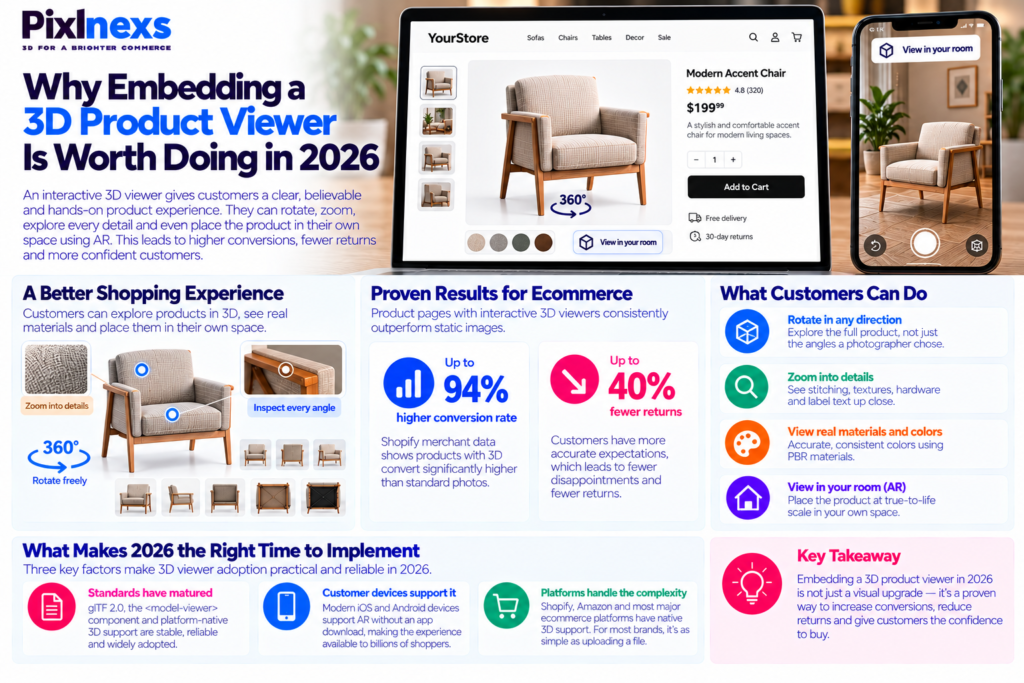
An interactive 3D viewer on a product page changes the information available to a customer at the point of purchase. Instead of choosing between the four or five static angles a photographer chose, a shopper can rotate the product in any direction, zoom into the stitching, the hardware finish or the label text and if AR is enabled place the product at true-to-life scale in their own room using their phone camera.
The conversion and return-rate data behind this is consistent across multiple studies. Shopify’s own merchant data and independent research show that product pages with interactive 3D viewers convert at significantly higher rates and generate fewer returns than equivalent pages with static photography. The mechanism is straightforward: customers who can inspect a product thoroughly before buying have more accurate expectations when it arrives, which means fewer disappointments and fewer returns.
For a full analysis of how 3D product visualization reduces ecommerce returns and which product categories see the largest impact, see our guide on reducing ecommerce returns with 3D product visualization.
What Makes 2026 the Right Time to Implement
Three factors make 2026 the practical moment for widespread 3D viewer adoption:
Standards have matured. The glTF 2.0 standard, the <model-viewer> component and platform-native 3D support have all stabilized to the point where implementation is reliable and predictable not an experimental integration that requires ongoing maintenance.
Customer devices support it. Modern smartphones on both iOS and Android support AR without an app download. The AR experience that once required dedicated hardware or a custom app is now available to every customer with a recent phone.
Platforms handle the complexity. Shopify, Amazon and most major ecommerce platforms have native 3D support built in, which means for most ecommerce brands the “embed” is uploading a file to an existing platform rather than writing custom HTML.
Understanding the 3D Viewer Embed Stack
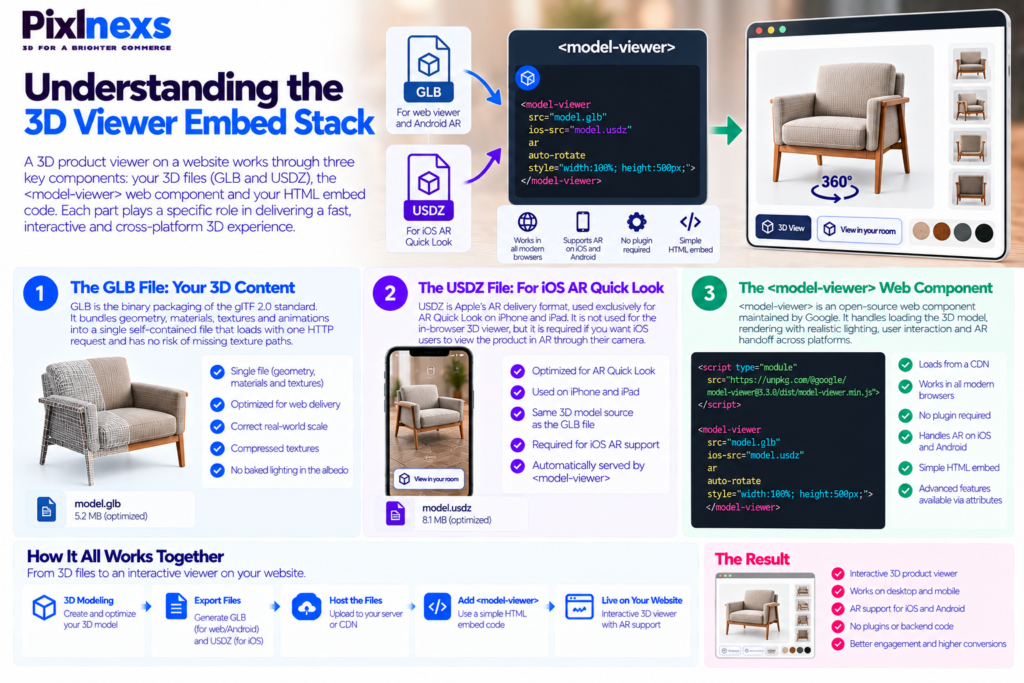
Before writing any code, understanding what each component in the stack does helps you make the right implementation decisions for your specific context.
The GLB File: Your 3D Content
GLB is the binary packaging of the glTF 2.0 standard it bundles geometry, materials, textures and animations into a single self-contained file that loads with one HTTP request and has no risk of missing texture paths.
For a web product viewer, the GLB file needs to be specifically optimized for web delivery: polygon count matched to the product’s role and target device, textures compressed, no baked lighting in the albedo and exported at correct real-world scale. A raw export from Blender or Maya is not web-ready it requires an optimization pass before it will perform acceptably on a mobile device.
For a full explanation of the GLB format, how it relates to glTF and when to use each, see our guide on GLB vs glTF: the real difference and when to use each.
The USDZ File: For iOS AR Quick Look
USDZ is Apple’s AR delivery format, used exclusively for AR Quick Look on iPhone and iPad. It is not used for the in-browser 3D viewer that uses GLB on all platforms but it is required if you want iOS users to be able to tap “View in your space” and see the product in AR through their camera.
Both files are typically produced from the same modeling session the GLB for web and Android AR, the USDZ for iOS AR. The <model-viewer> component accepts both and serves the correct format to each platform automatically.
The <model-viewer> Web Component: The Viewer Itself
<model-viewer> is an open-source web component maintained by Google that handles everything a 3D product viewer needs: loading the GLB, rendering it with physically based lighting in the browser, responding to touch and mouse controls for rotate and zoom and initiating AR handoff on supported devices.
It loads from a CDN as a single script tag and works in all modern browsers without a plugin. The basic implementation is three lines of HTML. Advanced configurations lazy loading, poster images, hotspots, animation playback, camera controls and custom AR modes are all available through HTML attributes and CSS custom properties without requiring JavaScript.
How to Do a 3D Product Viewer Embed: Basic Implementation
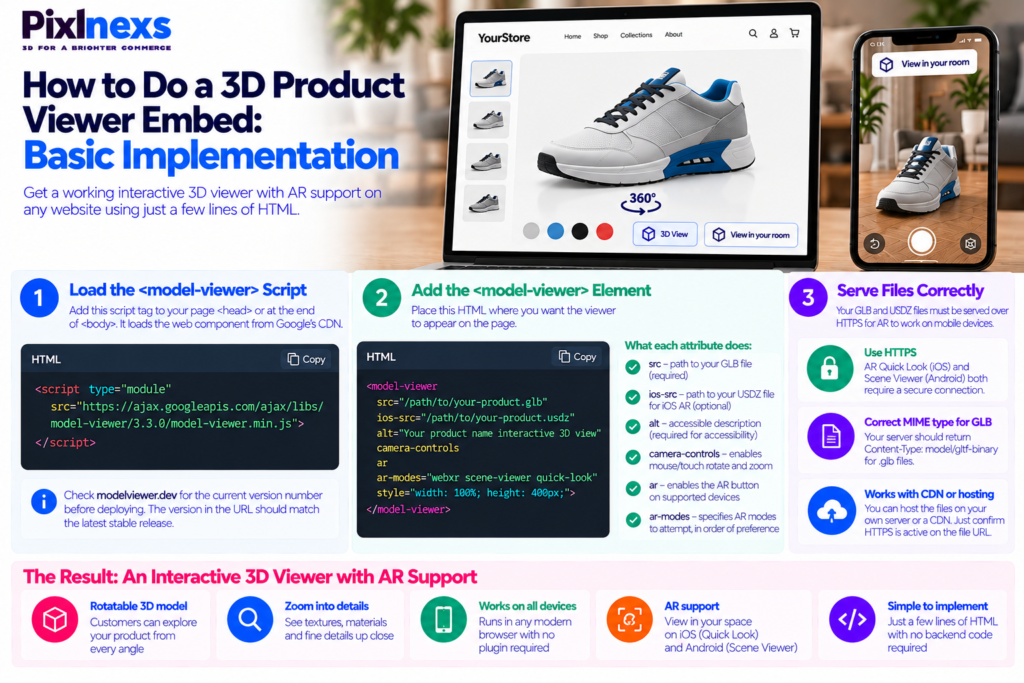
This is the minimum viable implementation. It gives you a working interactive 3D viewer with AR support in any browser.
Step 1: Load the <model-viewer> Script
Add this script tag to your page <head> or at the end of <body>. It loads the web component from Google’s CDN:
<script type="module"
  src="https://ajax.googleapis.com/ajax/libs/model-viewer/3.3.0/model-viewer.min.js">
</script>
Check modelviewer.dev for the current version number before deploying the version in the URL should match the latest stable release.
Step 2: Add the <model-viewer> Element
Place this HTML where you want the viewer to appear on the page:
<model-viewer
  src="/path/to/your-product.glb"
  ios-src="/path/to/your-product.usdz"
  alt="[Your product name] interactive 3D view"
  camera-controls
  ar
  ar-modes="webxr scene-viewer quick-look"
  style="width: 100%; height: 400px;">
</model-viewer>
What each attribute does:
srcthe path to your GLB file (required)ios-srcthe path to your USDZ file for iOS AR Quick Look (optional but recommended)altaccessible description of the product, read by screen readers (required for accessibility)camera-controlsenables mouse/touch rotate and zoomarenables the AR button on supported devicesar-modesspecifies which AR modes to attempt, in order of preference
Step 3: Serve Files Correctly
Your GLB and USDZ files must be served over HTTPS for AR to work on mobile devices. AR Quick Look on iOS and Scene Viewer on Android both require a secure connection. If your files are on a CDN or object storage bucket, confirm HTTPS is active on the file URL.
For the GLB specifically, confirm the server returns Content-Type: model/gltf-binary in the response headers. Most web servers handle this automatically for .glb files if the MIME type is configured but it is worth verifying.
Advanced <model-viewer> Configuration for Production Use
The basic implementation works but a production deployment needs several additional configurations to perform well, look professional and handle edge cases correctly.
Lazy Loading: Essential for Core Web Vitals
Without lazy loading, the viewer initializes and begins loading the GLB file as soon as the page loads even if the viewer is below the fold and the user never scrolls to it. On a product page where most visitors land and immediately evaluate the hero content, this means every visitor pays the performance cost of the 3D model whether they ever interact with it or not.
Lazy loading defers the GLB load until the viewer enters the viewport:
<model-viewer
  src="/path/to/your-product.glb"
  ios-src="/path/to/your-product.usdz"
  alt="[Product name] interactive 3D view"
  camera-controls
  ar
  ar-modes="webxr scene-viewer quick-look"
  loading="lazy"
  reveal="interaction"
  poster="/path/to/poster-image.webp"
  style="width: 100%; height: 400px; background-color: #f5f5f5;">
</model-viewer>
Additional attributes:
loading="lazy"defers the GLB load until the element is near the viewportreveal="interaction"keeps the poster image visible until the user interacts with the viewer, further deferring the 3D renderpostera flat product image shown before the 3D model loads, ensuring the viewer space is not blank while the GLB downloads
Poster Image: Eliminate Layout Shift and Blank Viewer Space
The poster attribute takes a path to a flat product image (JPEG or WebP) that displays in the viewer space while the GLB loads. This does two important things: it eliminates the blank white box that appears before the model loads and it gives the viewer a defined size so the page layout does not shift when the model appears directly improving your Cumulative Layout Shift score.
A good poster image is a clean render of the product on a white or neutral background at the same aspect ratio as the viewer. Pixlnexs includes a poster-ready render as part of standard model delivery for exactly this use case.
Camera and Lighting Controls
<model-viewer
  src="/path/to/your-product.glb"
  camera-controls
  camera-orbit="45deg 60deg 2m"
  field-of-view="30deg"
  shadow-intensity="1"
  shadow-softness="0.5"
  environment-image="neutral"
  exposure="1"
  style="width: 100%; height: 500px;">
</model-viewer>
What each attribute does:
camera-orbitsets the default viewing angle (azimuth, elevation, distance)field-of-viewcontrols how much of the scene is visible; lower values produce a flatter, more product-photography-like perspectiveshadow-intensityandshadow-softnesscontrol the drop shadow beneath the productenvironment-imagesets the lighting environment; “neutral” produces consistent, product-photography-style lighting that works well for most productsexposureadjusts overall scene brightness
AR Configuration for Maximum Compatibility
<model-viewer
  src="/path/to/your-product.glb"
  ios-src="/path/to/your-product.usdz"
  ar
  ar-modes="webxr scene-viewer quick-look"
  ar-scale="fixed"
  ar-placement="floor"
  camera-controls>
</model-viewer>
Key AR attributes:
ar-modeslists AR modes in priority order;webxris used on Android Chrome,scene-vieweropens Google’s Scene Viewer,quick-lookopens iOS AR Quick Lookar-scale="fixed"prevents the user from resizing the AR object, which is important for products where true-to-life scale is the point; use"auto"if you want to allow resizingar-placement="floor"anchors the model to a detected floor surface, which is correct for furniture and large objects; use"wall"for wall-mounted products
Platform-Specific 3D Viewer Implementation
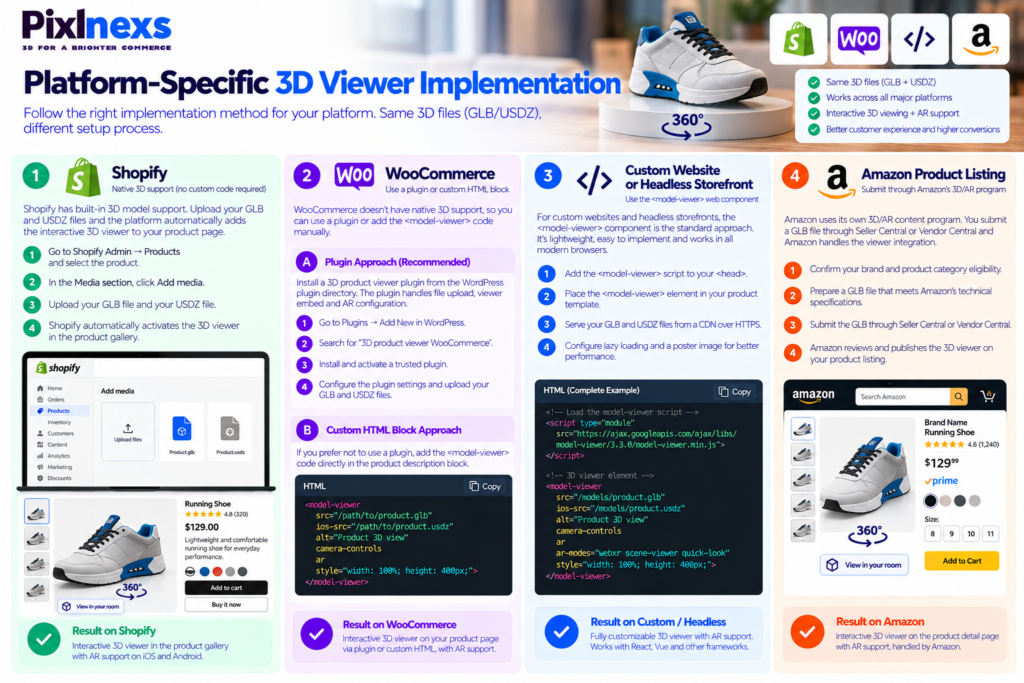
How to Embed a 3D Product Viewer on Shopify
Shopify has native 3D model support built into product pages no custom code required for the standard implementation.
The standard Shopify 3D embed process:
- Go to your Shopify Admin → Products → select the product
- In the Media section, click Add media
- Upload your GLB file (for the 3D viewer and Android AR) and your USDZ file (for iOS AR Quick Look)
- Shopify automatically activates the 3D viewer in the product gallery and handles AR handoff
The Shopify implementation uses its own viewer component rather than <model-viewer> but the file requirements are identical a web-ready GLB and optionally a USDZ.
For our complete step-by-step guide to adding 3D to Shopify including theme compatibility checks and app-based alternatives, see our article on to add a 3D product viewer to Shopify.
How to Embed a 3D Product Viewer on WooCommerce
WooCommerce does not have native 3D model support built in, so the implementation goes through a plugin or a custom HTML block.
Plugin approach: Several WooCommerce plugins provide 3D viewer functionality. The plugin handles the viewer embed, file upload and AR configuration through the WooCommerce admin interface. Search for “3D product viewer WooCommerce” in the WordPress plugin directory, check recent reviews for compatibility with your current WooCommerce and WordPress versions and follow the plugin’s specific installation instructions.
Custom HTML block approach: If you prefer not to use a plugin, a Custom HTML block in the WooCommerce product description accepts <model-viewer> markup directly. Add the script tag in your theme’s <head> and place the <model-viewer> element in the product description block.
How to Embed a 3D Product Viewer on a Custom Website or Headless Storefront
For custom-built websites and headless ecommerce storefronts, the <model-viewer> web component approach described in the Basic Implementation section above is the standard. The implementation is straightforward:
- Add the script tag to load the web component
- Place the
<model-viewer>element in your product template where you want the viewer to appear - Ensure your GLB and USDZ files are served from a CDN over HTTPS
- Configure lazy loading and a poster image for performance
For React, Vue or other framework-based frontends, <model-viewer> works as a standard HTML element with no framework-specific wrapper required, though community-maintained wrapper packages are available for most major frameworks.
How to Add a 3D Viewer to an Amazon Product Listing
Amazon’s implementation is through their brand 3D/AR content program rather than through <model-viewer>. You submit a GLB file through your Seller Central or Vendor Central account and Amazon handles the viewer integration on the product detail page. For our full guide to the Amazon 3D submission process, eligibility requirements and technical specification checklist, see our article on how to add interactive 3D to Amazon product listings.
File Preparation: What Makes a GLB Web-Ready
The viewer implementation is only as good as the file it loads. An overweight, poorly built GLB will perform badly regardless of how carefully the embed code is configured.
| Requirement | Target / Standard | Why It Matters |
|---|---|---|
| File size | Under 5MB ideally; under 15MB maximum | Controls load time on mobile data connections |
| Polygon count | 10,000–100,000 triangles depending on product complexity | Ensures smooth rotation on mid-range mobile GPUs |
| Texture resolution | 1K–2K per map; 4K only where close inspection is expected | Balances visual quality against download size |
| Texture compression | KTX2/Basis Universal for GPU-compressed textures | Reduces both download size and GPU memory usage |
| Geometry compression | Draco or Meshopt compression | Reduces mesh data size significantly |
| PBR materials | Metallic-roughness workflow, no baked lighting | Ensures correct rendering under browser lighting |
| Real-world scale | Matches product’s actual dimensions in meters | Required for AR placement accuracy |
The Most Common File Problem: Baked Lighting in the Albedo Texture
The single most common quality problem in web-ready GLB files is baked lighting in the albedo (base color) texture. This happens when a model is exported from an offline renderer the texture includes pre-rendered shadows and highlights that looked correct in the renderer but produce incorrect double-shadow artifacts when the browser’s real-time viewer lights the model from a different angle.
The symptom is a model that looks like it has a “shadow painted on” one side is permanently darker even when the user rotates the model to put the light source on that side. The fix is a clean albedo texture without any lighting baked in, where shadows come from the engine’s real-time lighting rather than the texture.
For a technical explanation of what game-ready and web-ready 3D models require and how to identify quality issues before accepting delivery, see our guide on What game-ready 3D models actually mean.
Testing Your 3D Viewer Implementation Before Going Live
A viewer that works on your development machine may behave differently on real customer devices. Test before going live.
The Device Testing Matrix
Test on at minimum: a recent iPhone, an older iPhone (two to three years old), a recent Android, an older mid-range Android and a desktop browser. AR Quick Look and Scene Viewer only run on real hardware browser simulators cannot test AR behavior.
For our complete pre-launch testing checklist covering model weight, AR scale accuracy, material rendering, controls and Core Web Vitals, see our article on how to test 3D and AR on product pages before launch.
Core Web Vitals Checks Specific to 3D Viewers
Run Lighthouse on the product page before adding the viewer, then again after. Compare:
- LCP (Largest Contentful Paint): the viewer should not be the LCP element; the poster image handles the initial impression while the GLB loads
- CLS (Cumulative Layout Shift): the viewer container must have defined dimensions before the model loads; use CSS to set explicit width and height
- TBT (Total Blocking Time): heavy GLB decompression can block the main thread on slower devices; if TBT increases significantly, the model needs further optimization
Validating the GLB Before Embedding
Before embedding a GLB on a product page, validate it with the Khronos glTF Validator (available online) to catch structural errors that will cause silent failures in some browsers. Also open it in modelviewer.dev‘s live editor to confirm materials, scale and lighting look correct before deploying to your live site.
Need a Web-Ready GLB File for Your Product Viewer?
Pixlnexs produces optimized GLB and USDZ files ready to embed in any website, Shopify store or Amazon listing accurate dimensions, calibrated PBR materials and compressed for fast mobile load.
Get a Quote for Web-Ready 3D Models Talk to Our TeamConclusion
Embedding an interactive 3D product viewer is one of the highest-leverage improvements available to an ecommerce product page in 2026. The technology is mature, the implementation is accessible, the customer devices are AR-capable by default and the conversion and return-rate data supports the investment clearly.
The implementation itself three lines of HTML for the basic case, a handful more for production-grade configuration is not what requires attention. What requires attention is the GLB file: its weight, its material accuracy, its scale and its visual fidelity to the real product. A well-built model in a basic <model-viewer> implementation will outperform a poorly built model in the most carefully configured viewer every time.
Start with your most important product. Build or commission a web-ready GLB to the standards described in this guide. Implement the viewer with lazy loading and a poster image. Test on real devices across your device matrix. Measure the impact on conversion rate and return rate. Then scale to the rest of your catalog from a position of validated results.
Frequently Asked Questions
What Is the Best Way to Embed a 3D Viewer on Any Website?
The <model-viewer> web component from Google is the most widely adopted solution it is open source, free, maintained actively and works in all modern browsers without a plugin. For ecommerce platforms, Shopify has native support (upload a GLB to product media) and WooCommerce supports 3D through plugins or custom HTML blocks. For custom websites, the <model-viewer> approach described in this guide is the standard.
Do I Need to Know How to Code to Add a 3D Product Viewer?
For Shopify: no. Uploading a GLB to product media is as simple as uploading a photo. For WooCommerce with a plugin: minimal plugin installation and configuration through the WordPress admin. For a custom website: yes, basic HTML knowledge is required to add the script tag and the <model-viewer> element but no JavaScript is required for the standard implementation.
What Is the Difference Between a 3D Viewer and AR?
A 3D viewer renders the product on the screen in three-dimensional space the shopper can rotate and zoom but the product remains on their screen. AR (augmented reality) places the product in the shopper’s actual physical space using their phone camera, at true-to-life scale. The <model-viewer> component provides both: the on-screen viewer is always active on supported browsers and an AR button appears automatically on AR-capable devices when the ar attribute is present.
How Large Should My GLB File Be for a Web Product Viewer?
As small as possible while maintaining acceptable visual quality at the sizes and zoom levels your viewer displays. A practical target is under 5MB for most consumer products and under 15MB for highly detailed products like furniture with complex fabric textures. Files over 15MB will load slowly on mobile data connections and may cause performance problems on older devices. File size is determined primarily by texture size and count compressing textures with KTX2 is the single largest lever for reducing GLB file size.
Will Adding a 3D Viewer Slow Down My Website?
Only if it is implemented without lazy loading. With lazy loading configured (the loading="lazy" and reveal="interaction" attributes), the GLB file does not load until the customer scrolls to the viewer visitors who do not interact with the product section of the page incur no performance cost. Always measure your Core Web Vitals before and after implementation using Lighthouse to confirm the impact.
Does <model-viewer> Work on All Browsers?
<model-viewer> works on all modern browsers including Chrome, Safari, Firefox and Edge on both desktop and mobile. AR functionality requires additional device support AR Quick Look requires iOS 12+ on iPhone or iPad and Scene Viewer requires an ARCore-compatible Android device. On browsers or devices that do not support AR, the viewer displays normally but the AR button does not appear which is the correct graceful degradation behavior.
Can I Use the Same GLB File on Shopify, Amazon and My Own Website?
Yes and this is one of the strongest economic arguments for investing in a well-built GLB file. The same file that serves your Shopify product page can be submitted to Amazon’s 3D/AR program, embedded on your brand website using <model-viewer> and used as a source for rendered still images and animated turntables for social media. One production pass serves every channel.
How Do I Get a Web-Ready GLB File for My Product?
A web-ready GLB requires a 3D modeling and optimization production process it is not a direct export from a photograph. The options are: build it in-house using 3D modeling software (Blender, Maya) with a web export and optimization pass; use an AI-assisted generation tool that produces GLB output (with manual cleanup typically required); or commission it from a specialist 3D production studio. For a detailed comparison of these approaches, see our guide on manual 3D modeling vs AI-generated 3D models for ecommerce.









Leave a Reply