
Quick Answer: A GLB file is a binary format for 3D models, combining
geometry, textures and animations into a single, compact file. GLB
viewers render these models efficiently, offering high-quality 3D visuals
for ecommerce platforms, enhancing product displays and customer engagement.
When people shop online they can’t hold your products or turn them around to see how a GLB file 3D model looks from every side. This is a problem because it means people often put things in their cart and then decide not to buy the product. It also means people send things back a lot.
The reason for this is that regular pictures of your products are not very good. They are flat. Do not show how big things really are. They do not show what the materials feel like or the small details that are important.
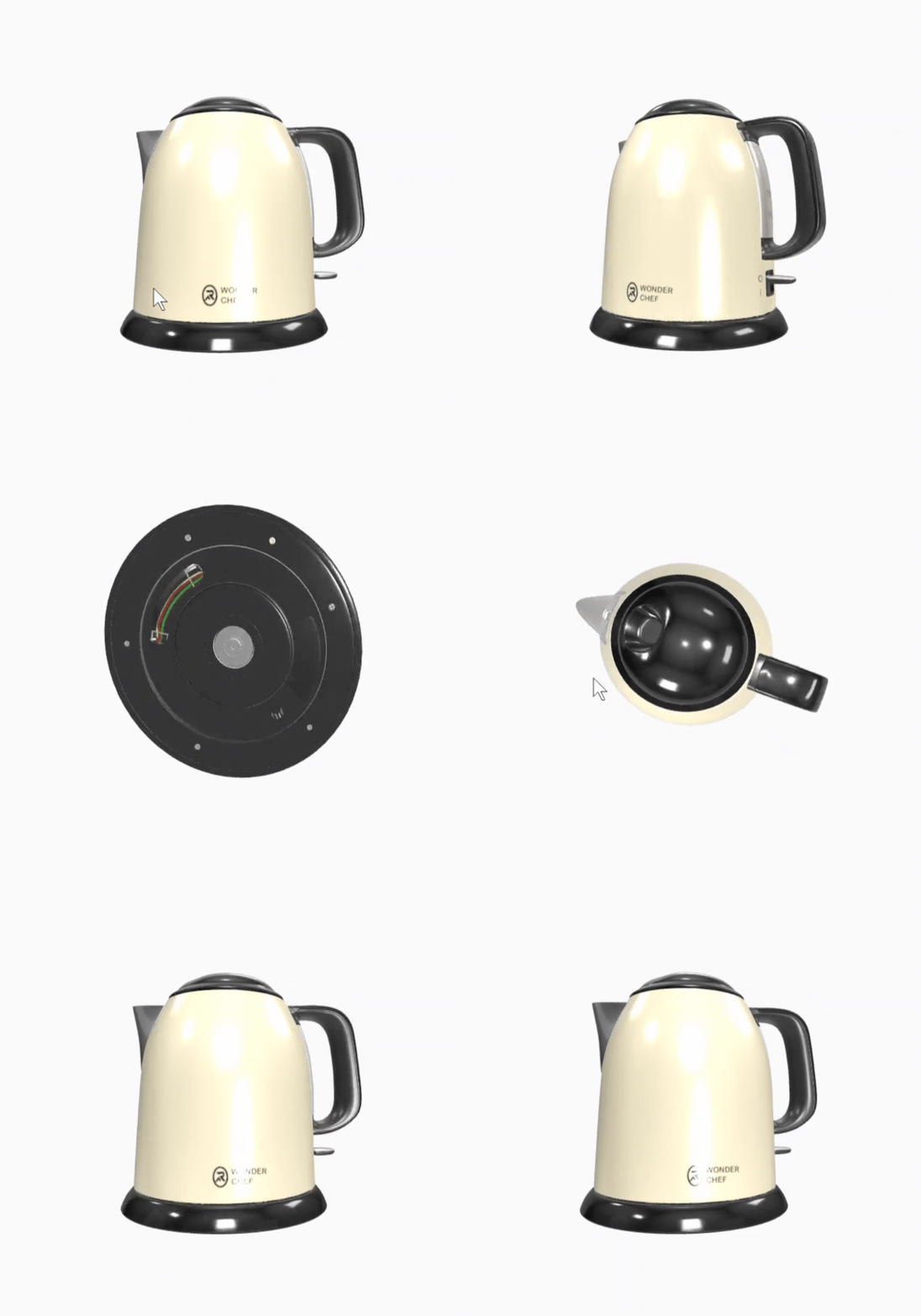
Using a glb file to display interactive items directly on your product pages solves this specific problem. A fully interactive glb 3d model lets customers rotate the item 360 degrees, zoom in on fine materials and inspect every angle. This self-guided inspection answers customer questions before they ask them.
This guide explains how the glb format works under the hood, how to set up a stable glb 3d viewer and how to prepare these assets for your online store without slowing down your loading speeds.
| Format | Storage | Textures | Best For |
|---|---|---|---|
| glTF | Multiple separate files (JSON + bin + images) | External | Development, editing |
| GLB | Single binary file | Embedded | Ecommerce, web delivery |
Key Takeaways
- GLB packs geometry, textures and animation into one binary file
no broken paths, one server request. - GLB is the format Android’s Scene Viewer and most web AR use natively.
- Draco compression can shrink geometry by up to 90% with no visible
quality loss on mobile screens. - Keep production models under 100,000 polygons, with 50,000 as the
ideal target for standard ecommerce products. - Pixlnexs builds and delivers production-ready GLB models optimized
to these exact specs for Shopify, WooCommerce and Magento stores.
Understanding the GLB Format and How a GLB Model Is Built
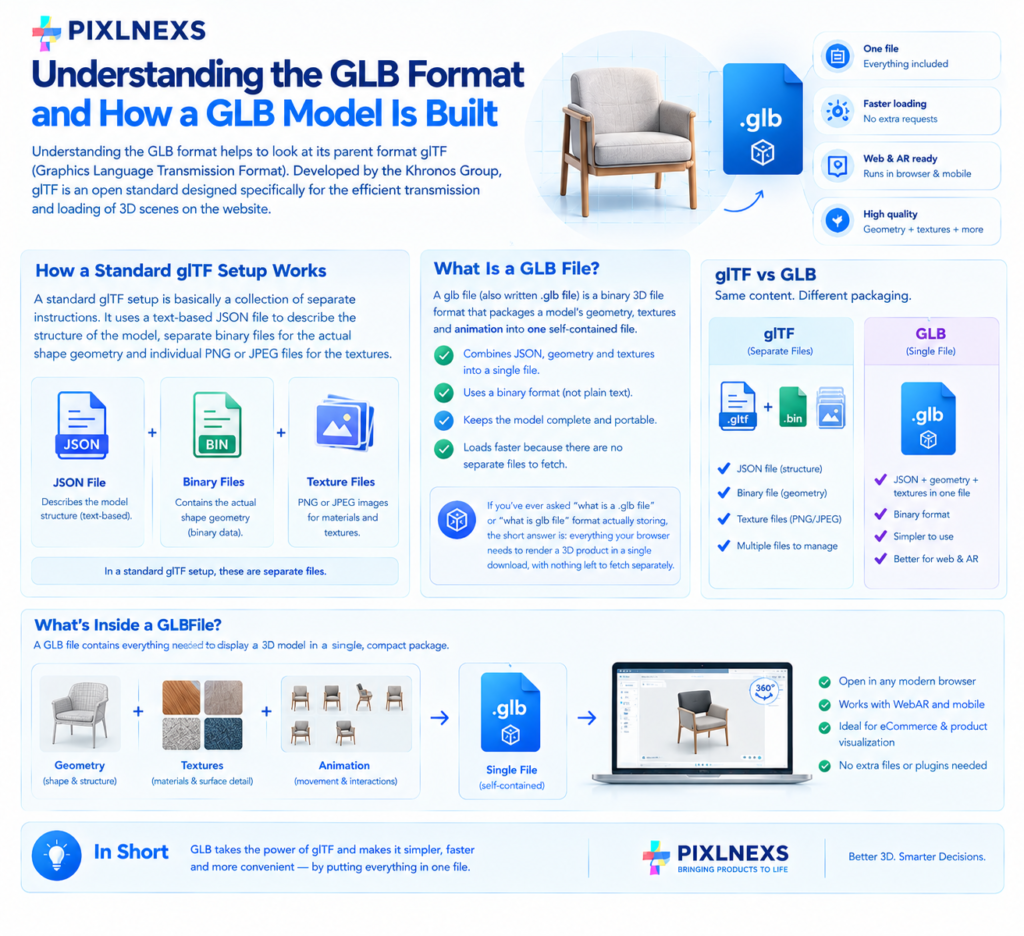
Understanding the GLB format helps to look at its parent format glTF (Graphics Language Transmission Format) Developed by the Khronos Group, glTF is an open standard designed specifically for the efficient transmission and loading of 3D scenes on the website.
A standard glTF setup is basically a collection of separate instructions. It uses a text-based JSON file to describe the structure of the model, separate binary files for the actual shape geometry and individual PNG or JPEG files for the textures.
A glb file is the simplest form of the binary version glTF. Instead of saving these elements in separate files, GLB file compresses the JSON structure, the geometry and the texture images into one single self-contained file. It converts the JSON text into a binary chunk and appends the binary buffers immediately after it. This structural consolidation ensures that the model remains intact and portable.
What Is a GLB File?
A glb file (also written .glb file) is a binary 3D file format that packages a model’s geometry, textures and animation into one self-contained file. If you’ve ever asked “what is a .glb file” or “what is glb file” format actually storing, the short answer is: everything your browser needs to render a 3D product in a single download, with nothing left to fetch separately.
How GLB Files Save Resources
Because a GLB file packages everything together it solves a major logistical issue for web browsers.When a browser loads a standard glTF model with separate textures, it has to make multiple HTTP requests to your server to fetch each image and geometry file. On average mobile networks, each separate request introduces connection delays. If a single texture file fails to load due to a broken path or a minor server timeout, your customer will see a gray untextured shape.
A GLB file requires only one server request. The browser opens a single socket connection, downloads the single file, unpacks it in memory and displays the fully textured model. This sequential reading pattern reduces CPU overhead on mobile devices, keeping the web page fast and responsive.
Why Ecommerce Stores Use GLB 3D Models
Using 3D images on product pages helps customers understand what they are buying. The GLB format has become the standard choice for online stores for several reasons.
Native Android Augmented Reality
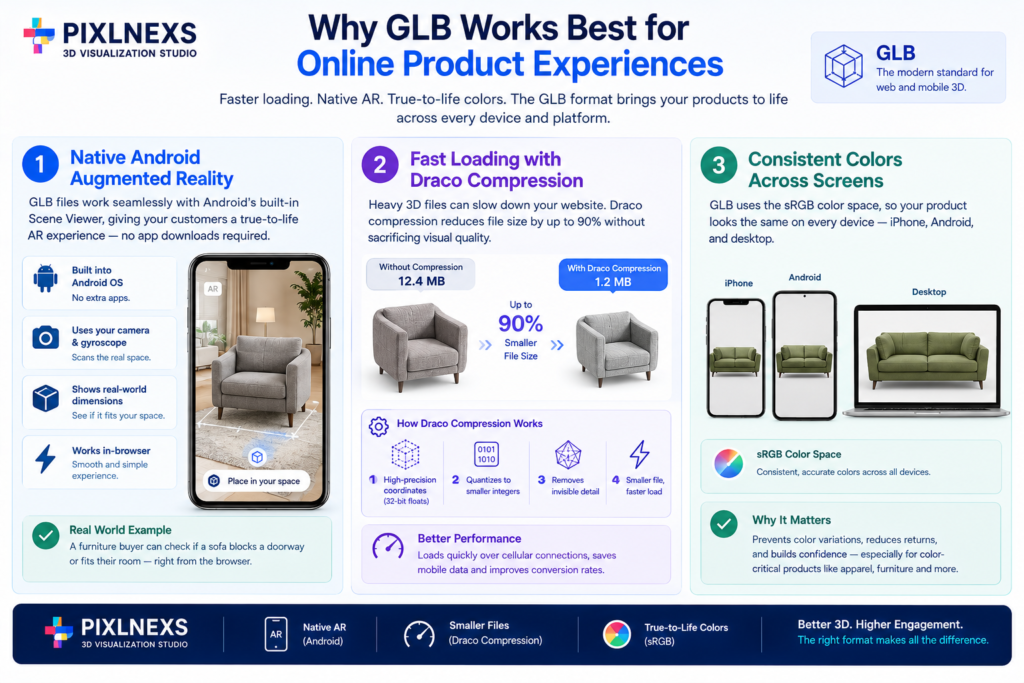
Google designed it is Android operating system to support GLB files natively. When an Android user click a 3D product on your website, the browser can open Android’s built in Scene Viewer.
This tool uses the phone camera and gyroscope to scan the physical room. It overlays the product at its exact real world dimensions on the screen. For example a customer buying a piece of furniture can see if a sofa physically blocks a doorway before making a purchase. This interaction works directly inside the browser removing the friction of external app downloads
Need this level of detail on your own product?
Fast Loading with Draco Compression
Page speed directly affects your conversion rates. Heavy 3D files can slow down your website. This delay causes visitors to leave.
The GLB format supports Draco mesh compression. This technology acts like a specialized zip format for 3D coordinate mathematics. Alternatively storing complex vertex coordinates as high-precision 32bit floating-point numbers, Draco quantizes these values into smaller integers. It strips away microscopic variations that the human eye cannot perceive on a phone screen.
Draco mesh compression can reduce heavy geometry file size by up to 90% (Google Khronos Group, Draco documentation). It allows mobile devices to download and open the file quickly over cellular connections without draining cellular data caps.
Consistent Colors Across Screens
GLB files use the sRGB color space. This means that the colors of products will look the same whether someone is looking at your store on an iPhone or an Android device or a desktop monitor.
In pictures colors can change depending on how different computers show color. Using sRGB stops your product pictures from looking too bright or too dull on web browsers.
For companies that sell things where the color has to be just right, like clothes or furniture this helps prevent people from sending things because the color is not what they thought it was when they saw it on the screen.
How to Display a GLB 3D Model on Your Website
To display a 3D model on your storefront, you need a glb 3D viewer that runs inside web browsers without requiring plugins.
Using Google’s <model-viewer> Component
The most common way to display 3D models online is through Google open source HTML element called <model-viewer>. This tool is free, fast and work across modern web browsers.
To use <model-viewer> on your website you must include Google script in your HTML header:
<script type=”module” src=”https://ajax.googleapis.com/ajax/libs/model-viewer/3.5.0/model-viewer.min.js”></script>
Then you can add this HTML structure to your product template:
<model-viewer
src=”assets/leather-boots.glb”
alt=”A 3D model of brown leather boots”
ar
auto-rotate
camera-controls
touch-action=”none”
shadow-intensity=”1″>
</model-viewer>
Here is how these settings work:
src: Points directly to the location of your GLB file on your server or CDN.
ar: Displays an augmented reality button on mobile devices, so customers can view the item in their physical room.
camera controls: Allows users to swipe to rotate the model and pinch to zoom on their screens.
touch action=”none”: Prevents the webpage from scrolling up or down while a user interacts with the 3D model.
shadow intensity: Add realistic shadows underneath the object making it look grounded rather than floating in space.
Platform Setup: Shopify
Shopify has built in support for GLB files. You do not need to write custom HTML to use GLB files on your store.
To use GLB files on your store go to your Shopify Admin panel and open the Product section.
Select the product you want to edit.
Under the Media block you can. Drop your optimized GLB file.
Shopify automatically generates the viewer on your product page. Serves the 3D GLB file through its global Content Delivery Network.
This means the 3D GLB file loads from a server that’s physically close to your customer, which reduces latency.
Shopify also uses a feature called loading, for the 3D .GLB content, which means the browser only downloads the heavy 3D GLB model after the main text and layout of the product page have finished loading.
Pixlnexs builds optimized, ecommerce-ready GLB models and integrates them directly into Shopify, WooCommerce and Magento product pages
Platform Setup: WooCommerce and Magento
WordPress WooCommerce and Adobe Magento do not perform automatic file handling. To support these platforms, you must upload your files manually.
Upload your GLB file to your website media library or secure storage bucket.
Insert the Google <model-viewer> script tag into your global header file.
Add the following code to your custom product template, pointing to your file:
<model-viewer
src=”https://yourdomain.com/media/chair.glb”
ar
camera-controls
touch-action=”none”
shadow-intensity=”1″>
</model-viewer>
The script displays the GLB file inside the browser viewer. It is essential to use secure HTTPS URLs for your GLB files to prevent modern browsers from blocking the 3D model due to mixed-content security policies.
Preparing the GLB File Formate for Online Retail
If your files are too large, they will crash mobile browsers. Work with your 3D artists to optimize your files before uploading them to your store.
Keep the Polygon Count Under Control
These are the exact polygon and texture specs we use when delivering production GLB models to ecommerce clients not general theory.
3D models are made of triangles called polygons
The more triangles used the detailed the model will be.
More triangles also mean bigger files that need more computer power to show and run.
These polygon and texture limits reflect the specs we use when delivering
production GLB models to ecommerce clients, not general theory
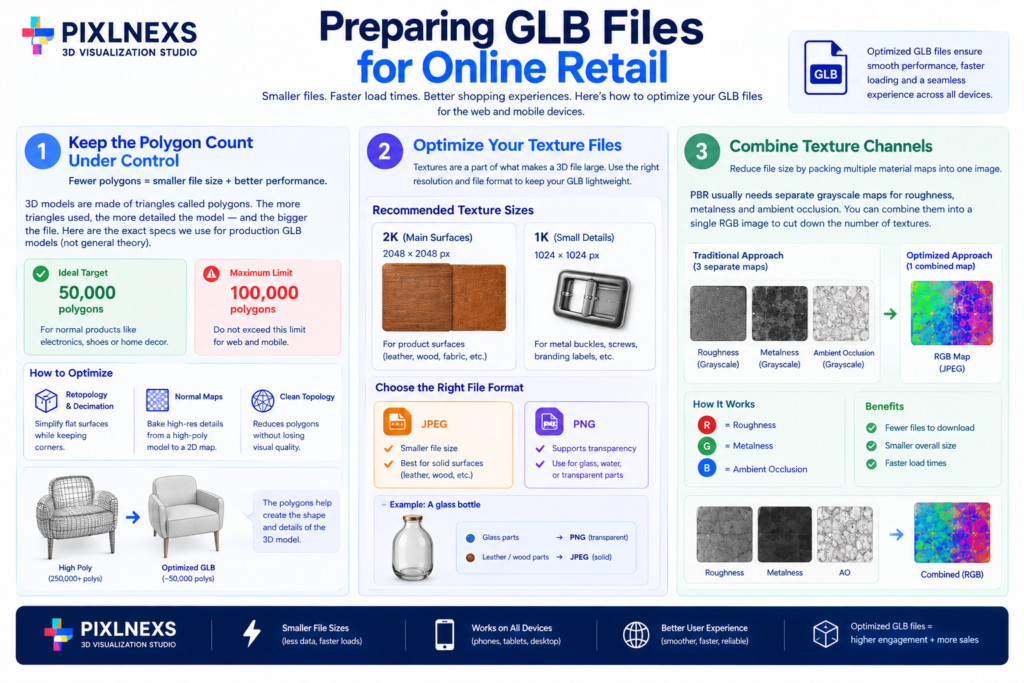
Maximum limit: Keep your models under 100000 polygons.
Ideal target: Try to have 50,000 polygons for normal products like electronics, shoes or home decor.
Your 3D artist can use tools like retopology and decimation in programs like Blender.
These tools help make flat surfaces simpler while keeping corners.
To keep detail without adding polygons you can bake high resolution details from a big polygon model onto a 2D normal map.
The low polygon model will still look good with reflections.
The 3D models and polygons are key to making it look good.
The polygons help create the shape and details of the High quality 3D models.
The more polygons used the more detailed the 3D models will be.
Optimize Your GLB Files’ Texture Data
Textures are a part of what makes a 3D file large.
Do not use textures that’re 4K resolution. They take up much memory on mobile browsers which can cause problems when you try to load the page on Safari or Chrome.
For the surfaces of your product you should use 2K textures, which are 2048 x 2048 pixels.
For parts like metal buckles or screws or branding labels you should use 1K textures which are 1024 x 1024 pixels.
When you save your color maps it is an idea to use JPEG files because they take up less space. You should only use PNG files when your product has parts that need to be transparent like a glass bottle.
For example if you have a glass bottle you should use PNG files for the glass parts. If you have solid parts like leather or wood you should use JPEG textures for those.
Combine Texture Channels
You may further reduce your file size by combining several material maps into one image.
Traditionally, the Physically Based Rendering (PBR) process requires individual grayscale maps used to determine the degree of a model’s metallic, roughness or reflectivity levels. In the case of a 3D artist, roughness, metalness and ambient occlusion maps could be combined into a red, green and blue component within one JPEG image.
It is possible since any individual color map is just an 8 bit grayscale map. While creating your texture, keep in mind that the rendering engine will use the red color map for roughness, green for metalness and blue for occlusion. Such a combination will decrease the number of textures to be downloaded by your customer from three to one.
Conclusion
Using GLB 3D models on your ecommerce store helps customers inspect products with the same confidence they would have in a physical shop. The GLB format provides a fast, self-contained solution for web browsers and Android devices. This keeps your page loading speeds high.
To give every visitor the best experience, use a web component like Google’s <model-viewer> to serve GLB files directly on your product pages. Keep your polygon counts low and your textures optimized. This approach protects your site speed and helps you complete more sales.
Need a production-ready GLB model for your store?
Frequently Asked Questions About GLB Files
Can iPhones open GLB files?
Yes iPhone can display GLB files inside standard web browsers like Safari or Chrome using a web viewer such as Google <model-viewer> component. This allows iOS users to rotate and zoom in on your 3D product directly on your store page.
How do I open and view a .glb file on my computer?
A GLB file can be opened simply by dragging and dropping it to an online viewer which is freely available on the internet, for example: Khronos glTF Viewer or Google<model-viewer>editor. In case you have Windows operating system, then another way is to open the GLB file using the 3D viewer program on your device. The Mac users can import the GLB file in free programs like Blender.
Why is my GLB model showing up as plain gray in the viewer?
This problem is often caused by having the paths to your textures already broken when exporting. If you’re working with Blender, make sure your materials are hooked up to a Principled BSDF shader and that all your textures are packed into the same Blender file using File > External Data > Pack Resources before you export it as GLB.
What is the difference between glTF and GLB?
glTF stands for the textual representation of this file format. In this case, the model structure information is stored in a JSON file, while the texture and geometry information remain in other files separately. GLB represents the binary form of glTF, where everything is packed together in just one single file.
How do I reduce the file size of a GLB file?
You can reduce the size of a GLB file by compressing its 3D geometry using Draco mesh compression. You can also do this by reducing texture image resolutions down to 2K or 1K and combining different material maps (roughness, metallic and ambient occlusion) into the RGB channels of a single JPEG image.
Do GLB files work with AR Quick Look on iPhone?
GLB files themselves aren’t natively supported by Apple’s AR Quick Look, which requires USDZ. For iOS AR, you’ll need a separate USDZ export alongside your GLB or a viewer like model-viewer that auto-serves the right format per device.
Browse GLB & render-ready 3D models in the Pixlnexs store. Go now →
Related guide: 3D models for games, AR/VR & ecommerce.
Want to check a GLB file yourself? Open it in the free online GLB viewer to rotate, zoom and inspect any .glb model in your browser.
Read More
GLB vs USDZ vs OBJ: 3D File Formats Explained
GLB vs USDZ: Choose the Best 3D Format for Your Store
GLB vs GLTF: The Real Difference (and When to Use Each) in 2026
How to Convert a GLB to USDZ for iOS AR (Step by Step) Guide in 2026








Leave a Reply