

Quick answer: “Game ready 3D model” refers to an asset that one can drop directly into a game engine and use as is because it does not require any further work before being used. In terms of features, it includes having a clean and optimized model with a reasonable polygon count, correct materials and textures for real time usage, correct normals and ambient occlusion map, correct scale and pivot point and a proper rig with clean weights when applicable. A beautiful film model is usually not game-ready, while a humble prop with correct topology, UVs and LODs is. If you can import it into Unreal or Unity and it renders, lights and animates correctly at frame rate, it qualifies.
By the Pixlnexs Animation Studio team, we produce AI video and 3D content and run the marketplace at store.pixlnexs.com, so this reflects real production experience.
“Game-ready” is one of the most abused phrases in the 3D marketplace world. It gets stamped on renders that would melt a console GPU and on sculpts with a million-triangle face and a single 8K texture per eyebrow. This guide is the hub for what the term actually means in production, what to check before you trust a listing and how to make your own assets earn the label honestly.
What “game-ready” actually means
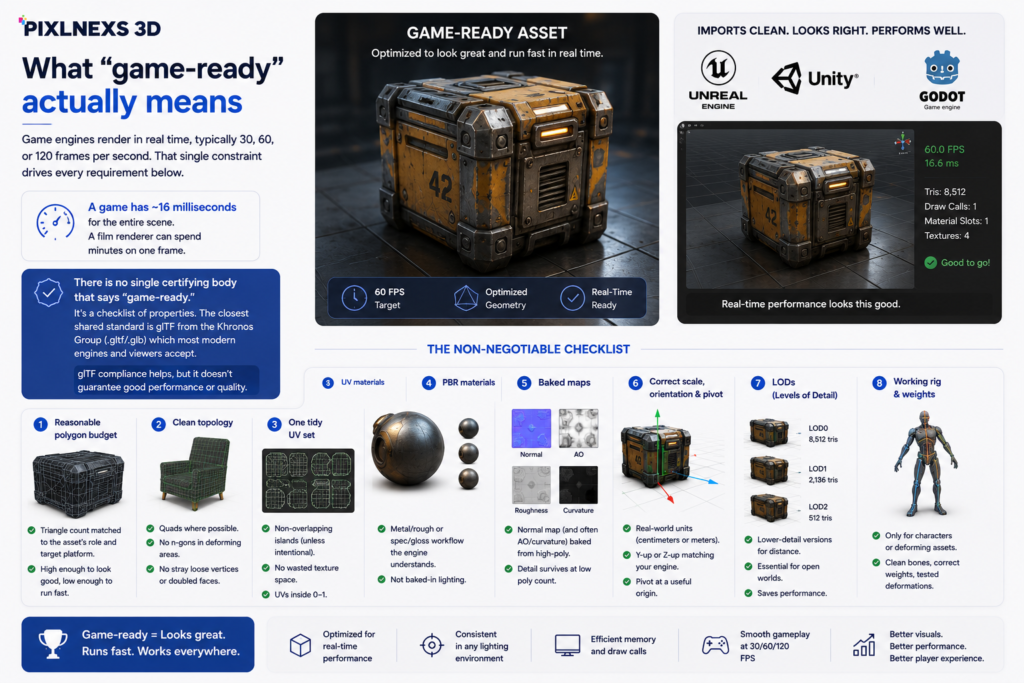
Game engines render in real time, typically 30, 60 or 120 frames per second. That single constraint drives every requirement below. A film renderer can spend minutes on one frame. A game has roughly 16 milliseconds for the entire scene. So a game-ready model is one that has been engineered to be cheap to draw, cheap to light and cheap to animate, while still looking good.
There is no single certifying body and no file checksum that says “game-ready.” It is a checklist of properties. The closest thing to a shared standard is the glTF specification from the Khronos Group, which defines the runtime-friendly format (.gltf/.glb) most modern engines and viewers accept. If an asset imports cleanly as glTF and behaves, that is a strong signal. But glTF compliance alone does not guarantee a sane polygon count or good UVs.
The non-negotiable checklist
- Reasonable polygon budget: triangle count matched to the asset’s role and target platform.
- Clean topology: quads where possible, no n-gons in deforming areas, no stray loose vertices or doubled faces.
- One tidy UV set: non-overlapping islands (unless intentional for mirrored detail) no wasted texture space, no UVs spilling outside 0–1.
- PBR materials: a metal/rough or spec/gloss texture set the engine understands, not a baked-in render lighting.
- Baked maps: normal map (and often AO/curvature) baked from the high-poly source so detail survives at low triangle count.
- Correct scale orientation and pivot: real-world units, Y- or Z-up matching your engine, pivot at a useful origin.
- LODs: lower-detail versions for distance rendering (nice-to-have for props, important for open worlds).
- A working rig and weights: only if the asset is a character or anything that deforms.
Polygon budget: the number everyone fixates on
Triangle count is the most talked-about metric and the most misunderstood. There is no universal “game-ready triangle count.” It depends entirely on the platform, how many of the asset appear on screen at once and how important the asset is. A hero character the camera lives on can justify far more geometry than a background barrel you place a hundred times.
The honest ranges below are rules of thumb from common production practice, not hard limits. Treat them as starting points and profile on your actual target hardware.
| Asset type | Typical triangle range (rule of thumb) | Notes |
|---|---|---|
| Small prop (mobile) | ~300 – 1,500 | Often one shared atlas texture across many props. |
| Environment prop (PC/console) | ~1,500 – 10,000 | LODs matter when instanced heavily. |
| NPC / secondary character | ~10,000 – 30,000 | Balance silhouette against crowd count. |
| Hero character (PC/console) | ~30,000 – 100,000+ | Higher is acceptable if few are on screen. |
| Mobile character | ~3,000 – 15,000 | Tighter budgets; aggressive LODs. |
Here is a subtlety many newcomers miss. The GPU cares about triangles, not the quads you model with. A quad is two triangles. Engines also care about draw calls and overdraw, so two clever low-poly assets sharing one material can outperform one “lighter” asset that drags in five 4K textures. The trade-off bites in practice: you can shave a model down to a tiny triangle count and still tank your frame rate because each unique material is a separate draw call. Cut materials before you obsess over triangles. If you want a deeper treatment of budget tradeoffs, see our companion guide on low-poly vs high-poly 3D models.
Topology: why the mesh flow matters
Clean topology is the difference between a model that deforms gracefully and one that crumples like foil at the elbows. For static props, topology mostly affects how efficiently the silhouette is described and how well normal maps bake. For anything that animates, topology is structural. You need edge loops at the joints, even quad flow across deforming surfaces and no n-gons or triangles in areas that bend.
Red flags in a mesh
- N-gons (faces with five or more sides) in shoulders, knees, faces or any deforming region.
- Overlapping or coincident faces, which cause z-fighting and broken bakes.
- Non-manifold geometry, meaning edges shared by more than two faces, which confuse engines and bakers.
- Inverted or inconsistent normals, where surfaces go black or disappear at certain angles.
- Loose vertices and stray edges left over from modeling.
UVs and textures: feeding the real-time shader
UV mapping is how the 2D texture wraps the 3D surface. A game-ready model has a single, efficient UV layout with islands packed to use the texture space well and no overlaps (except deliberate mirroring). Wasted UV space is wasted texture resolution, which means blurrier surfaces or bigger downloads for no benefit.
Texturing for games means physically based rendering (PBR). Instead of baking lighting into the color, you supply maps the engine interprets under its own lights: base color (albedo) metallic, roughness, normal and often ambient occlusion. The web platform documentation on real-time materials is a good neutral primer if you are new to the model. See web.dev for rendering-performance fundamentals that translate directly to game engines.
The most common texture mistake
Baked-in lighting. If a model’s color texture already contains shadows and highlights from a render, it will look wrong the moment your engine lights it: double shadows, flat plastic where there should be depth. Game-ready albedo is flat, lighting-free color. The shadows come from the normal/AO maps and the engine’s real-time lights, not from the diffuse map. This is the single thing that catches people who came up doing renders rather than real-time work. The asset looks gorgeous in the thumbnail and falls apart the second it sees an engine light.
Scale, pivot and orientation
This is the boring step that wastes the most hours. If a model is built at the wrong scale, it imports as a giant or a speck. If the pivot sits a kilometer from the geometry, it spins wildly when rotated. If it is Z-up and your engine is Y-up, it lies on its back. Game-ready means built to real-world units, pivot at a sensible origin (feet for characters, base for furniture) and oriented to a documented up-axis. Both importing into Unreal Engine 5 and importing into Unity get dramatically smoother when these are correct at export time.
LODs and performance scaling
Levels of Detail (LODs) are progressively simpler versions of a model swapped in as it moves away from the camera. A barrel ten meters away does not need its full triangle count or its 4K texture. For single hero assets LODs are optional. For anything instanced across a world they are how you keep frame rate stable. Many engines can auto-generate LODs on import but hand-authored LODs almost always look better because a person decides what detail to keep.
Rigging and animation readiness
If your asset moves, “game-ready” expands to include the skeleton. That means a clean joint hierarchy, sensible bone names and skin weights that deform without tearing or candy-wrapping. Game engines also cap how many bones can influence a single vertex (commonly four) so weights need to respect that limit. A character that animates flawlessly in your DCC tool can still break in-engine if it relies on more influences than the runtime allows. What actually happens here is subtle: the weights silently get normalized down to the bone limit on import, so nothing errors out. The model just deforms slightly wrong and you spend an afternoon wondering why the shoulder pinches.
How to vet a “game-ready” asset before you buy or build
- Read the spec, not the hero render. Look for stated triangle count, texture resolution, map list and rig details.
- Open the wireframe. Even quad flow and no obvious n-gons in deforming areas is a green flag.
- Check the UV preview. Tidy, packed, non-overlapping islands signal real game-ready work.
- Confirm the format. A clean .glb/.gltf or .fbx that imports without errors beats a proprietary scene file.
- Test import early. The fastest truth is dropping it into your engine and looking at the stats overlay.
If you would rather start from assets already vetted for engine use, browse the marketplace at store.pixlnexs.com. And when you commission custom work, ask for the checklist above in writing.
Frequently asked questions
Is “game-ready” an official standard?
There is no one-size-fits-all figure for this. The figure will depend on the platform and the number of copies that appear on-screen, as well as the significance of the asset in question. The prop in a mobile game may consist of only hundreds of polygons, whereas the hero in a PC game could consist of more than 100,000 polygons.
What polygon count makes a model game-ready?
There is no single number. It depends on the platform, how many copies appear on screen and how important the asset is. A mobile prop might be a few hundred triangles while a PC hero character can exceed 100,000. Use the asset’s role and your target hardware to decide and profile in-engine rather than trusting a quoted figure.
Can a high-poly model be game-ready?
Sometimes. A high-poly sculpt straight from ZBrush usually is not. It is too dense and lacks game UVs and PBR maps. But a deliberately high-poly hero asset with clean topology, baked maps and LODs can be game-ready if your platform and scene budget allow it. The deciding factor is engineering, not raw triangle count.
Why does my model look wrong after importing into the engine?
The usual culprits are baked-in lighting in the color texture (causing double shadows) inverted normals (black or invisible faces) wrong scale or up-axis or missing/incorrectly assigned PBR maps. Check the material setup first, then normals, then scale and orientation. Most “broken import” problems trace back to one of these four.
What file format should a game ready 3D model use?
For assets that can be transported around, glTF/GLB will be the cleanest, given that it is a native format. FBX is widely used and has good support from Unreal and Unity engines, especially for rigged and animated assets. OBJ can be used for simple static mesh models without any rigging or animations.
Do game-ready models always need LODs?
No but it depends on use. A single hero asset the camera focuses on may not need LODs. Any asset instanced many times across a level or used in an open world, benefits enormously from LODs to hold frame rate. Many engines auto-generate LODs on import, though hand-authored ones usually look better.
How do I make my own model game-ready?
Re topologize the high-poly sculpt into a clean low-poly mesh, create one set of UVs, bake normals and AO maps from the high poly, texture with PBR textures without lighting on the albedo map, set the right scale and pivot, use LODs if the asset is instanced, rig with bone influence constraints allowed by the engine if the asset is animated. Then import into the engine to review stats.










Leave a Reply