
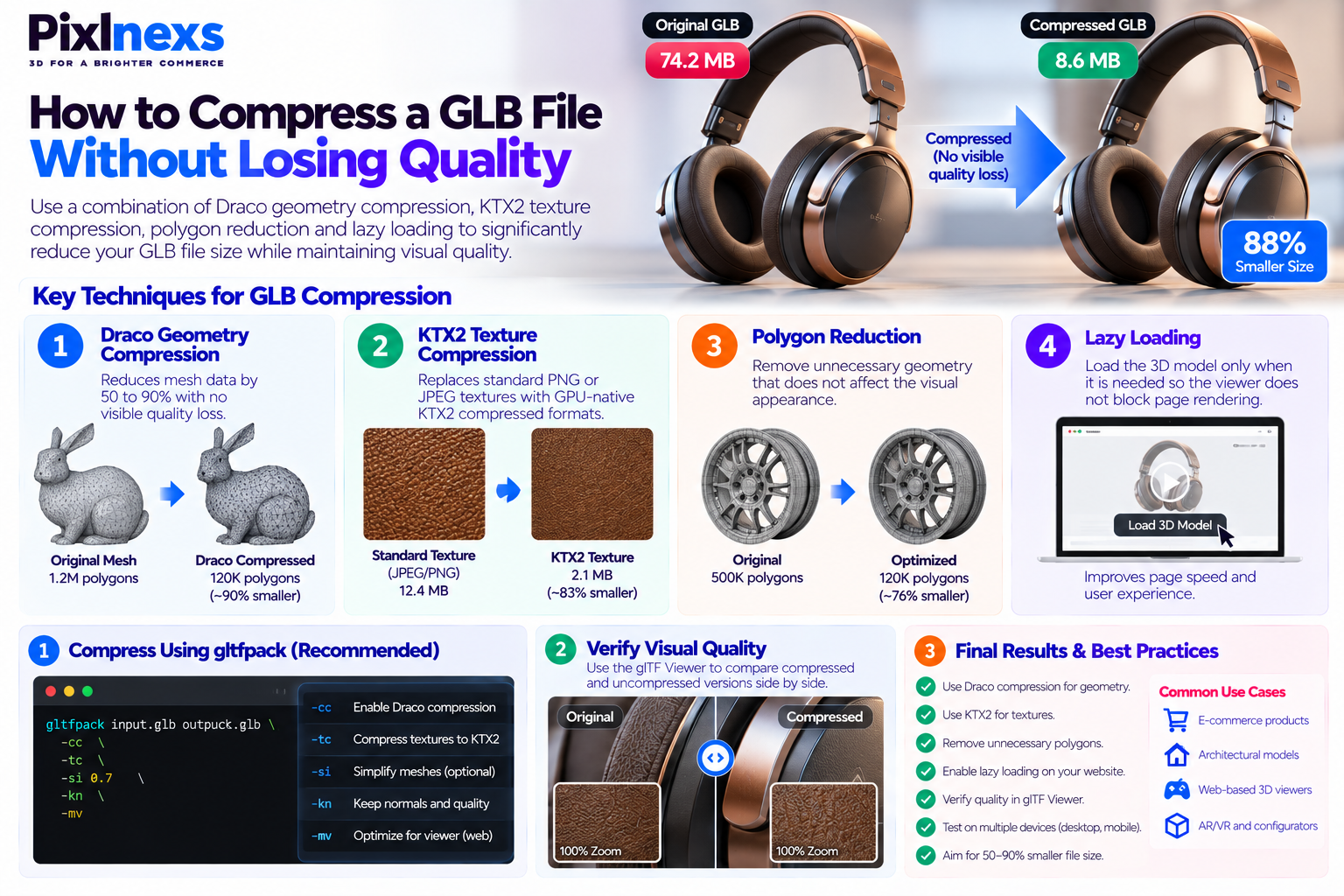
Quick Answer: How to compress GLB file without losing quality, apply a combination of Draco geometry compression (which reduces mesh data by 50 to 90 percent with no visible quality loss) KTX2 texture compression (which replaces standard PNG or JPEG textures with GPU-native compressed formats) polygon reduction to remove unnecessary geometry and lazy loading so the viewer does not block page rendering. The most efficient single tool for GLB compression is gltfpack, a command-line utility that applies Draco compression, mesh simplification and texture optimization in one pass. For visual quality verification after compression, use the glTF Viewer to compare the compressed and uncompressed versions side by side before shipping to production.
By Manoj, Pixlnexs Studio. Pixlnexs builds and optimizes GLB product models for ecommerce brands worldwide, delivering compressed, web-ready files that load in under two seconds on mobile and this guide reflects the compression pipeline our production team runs on every model before delivery.
Key Takeaways: How to Compress GLB File Without Losing Quality
Copy heading
- A GLB file that loads slowly on a mobile device is a failed asset no matter how visually impressive the model is, a shopper who waits more than three seconds will leave before the viewer renders.
- GLB compression is not a single technique it is a combination of geometry compression, texture compression, polygon reduction and delivery optimization, each of which addresses a different contributor to file size and load time.
- Draco geometry compression is the highest-impact single technique: it reduces mesh data by 50 to 90 percent and is supported by all major GLB viewers including Google model-viewer, Three.js and Babylon.js.
- KTX2 texture compression is the second highest-impact technique: textures typically account for 60 to 80 percent of a GLB file’s total size and KTX2 formats reduce that substantially while maintaining visual quality.
- Polygon reduction is a creative decision as well as a technical one removing the wrong polygons changes the visible shape of the model, so it requires artistic judgment rather than purely automated processing.
- gltfpack is the most capable free command-line tool for GLB compression and handles Draco, mesh simplification and texture optimization in a single pass.
- Always verify compressed output visually before publishing use the Khronos glTF Viewer or a model-viewer embed to compare the compressed and uncompressed versions.
Why Compressing a GLB File Matters for Web Performance
A GLB file is the binary form of the glTF format the open standard maintained by the Khronos Group for efficient 3D asset transmission on the web. The format was specifically designed for web delivery rather than for production or archival purposes, which means it is already more efficient than formats like OBJ or FBX for web use. But “efficient for web” is not the same as “ready for ecommerce product pages without optimization” and the gap between those two states is where most performance problems originate.
The Real Cost of an Uncompressed GLB File
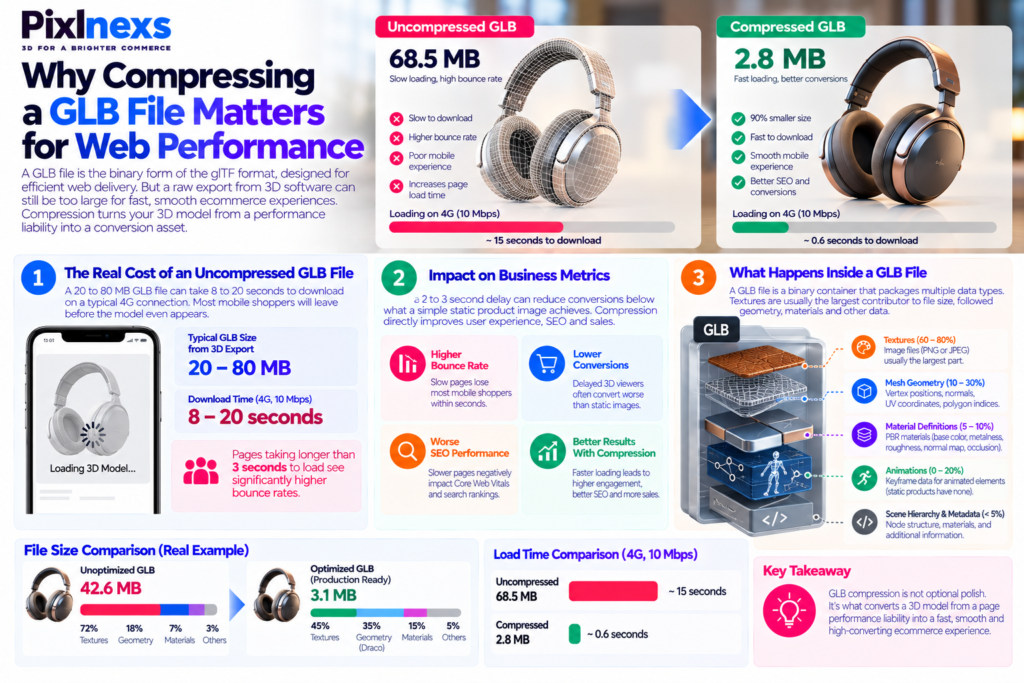
An uncompressed GLB file from a 3D modeling software export can easily run 20 to 80 megabytes for a detailed product model. At that size, on a typical 4G mobile connection, the model takes 8 to 20 seconds to download before the viewer even begins to render a waiting time that loses the overwhelming majority of mobile shoppers before they interact with the model at all.
Google’s Core Web Vitals research consistently shows that pages taking longer than three seconds to load see dramatically higher bounce rates. A 3D product viewer that delays page load by even two to three seconds on mobile let alone eight to twenty seconds for an unoptimized model can reduce conversion rates below what a simple, well-photographed static product image achieves. The compression work is not optional polish; it is what converts a 3D model from a page performance liability into a conversion asset.
What Happens Inside a GLB File
Understanding why GLB files are large requires understanding what they contain. A GLB file is a binary container that packages multiple data types into a single file:
Mesh geometry the vertex positions, normals, UV coordinates and polygon indices that define the 3D shape. This is typically the smallest contributor to file size but the most computationally expensive to parse.
Textures image files embedded in the binary container, typically in PNG or JPEG format. These are almost always the largest contributor to GLB file size in a typical ecommerce product model, textures account for 60 to 80 percent of the total file size.
Material definitions the glTF PBR material properties (base color, metalness, roughness, normal map, occlusion) that define how surfaces respond to light.
Animations keyframe data for any animated elements in the model. For static product models, this is absent; for animated product demonstrations, it adds meaningful size.
Scene hierarchy and metadata the structural data describing how nodes, meshes and materials relate to each other.
Each of these components can be compressed or optimized and the combination of techniques applied to all of them is what brings a 40 megabyte unoptimized export down to a 2 to 4 megabyte production-ready GLB.
How to Compress a GLB File: Draco Geometry Compression
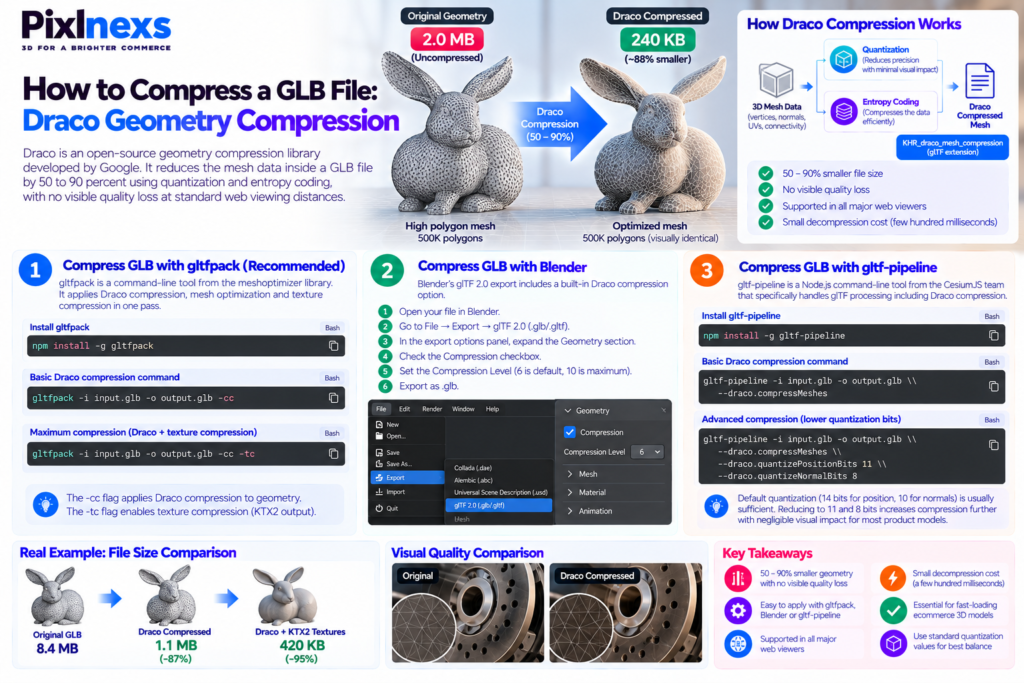
Draco is an open-source geometry compression library developed by Google, specifically designed to compress and decompress 3D geometric meshes and point clouds. It is the highest-impact single compression technique available for GLB files and is supported as a glTF extension (KHR_draco_mesh_compression) in all major web viewers.
What Draco Compression Does
Draco compresses the geometry data inside a GLB file vertex positions, normals, texture coordinates and connectivity using a quantization and entropy coding approach that achieves compression ratios of 50 to 90 percent on typical 3D product models. A model with 2 megabytes of uncompressed geometry data typically compresses to 200 to 400 kilobytes with Draco, with no visible quality degradation at standard web viewing distances.
The trade-off is a small decompression cost at render time the viewer has to decode the compressed geometry before it can be displayed. For typical product model sizes, this decompression takes a few hundred milliseconds on a modern mobile device well within acceptable range for most ecommerce use cases. For very large or complex models, this decompression time should be measured and weighed against the load time saving.
How to Apply Draco Compression with gltfpack
gltfpack is a command-line tool included in the meshoptimizer library, written by Arseny Kapoulkine. It handles Draco compression, mesh simplification and texture optimization and is the recommended tool for production GLB compression pipelines.
Install gltfpack from the meshoptimizer GitHub releases or via npm:
npm install -g gltfpack
Basic Draco compression command:
gltfpack -i input.glb -o output.glb -cc
The -cc flag applies Draco compression to geometry. This is the minimum compression pass for any GLB before web delivery.
For maximum compression combining mesh optimization, Draco and texture compression:
gltfpack -i input.glb -o output.glb -cc -tc
The -tc flag enables texture compression (KTX2 output) in addition to Draco geometry compression.
How to Apply Draco Compression with Blender
Blender’s glTF 2.0 export includes a Draco compression option in the export settings. To apply it:
Open your file in Blender. Go to File → Export → glTF 2.0 (.glb/.gltf). In the export options panel on the right, expand the Geometry section and check the Compression checkbox. Set the Compression Level (6 is the default; 10 is maximum compression at the cost of slightly longer decompression; 6 is appropriate for most web use cases). Export as .glb to produce a Draco-compressed binary.
How to Apply Draco Compression with gltf-pipeline
gltf-pipeline is a Node.js command-line tool from the CesiumJS team that specifically handles glTF processing including Draco compression.
Install via npm:
npm install -g gltf-pipeline
Apply Draco compression:
gltf-pipeline -i input.glb -o output.glb –draco.compressMeshes
For more aggressive Draco compression with lower quantization bits (which increases compression ratio at the cost of very slightly reduced geometric precision):
gltf-pipeline -i input.glb -o output.glb –draco.compressMeshes –draco.quantizePositionBits 11 –draco.quantizeNormalBits 8
The default quantization values (14 bits for position, 10 for normals) produce output that is indistinguishable from uncompressed geometry at web viewing distances. Reducing to 11 and 8 bits respectively increases compression further with negligible visible impact for most product models.
How to Compress GLB Textures with KTX2
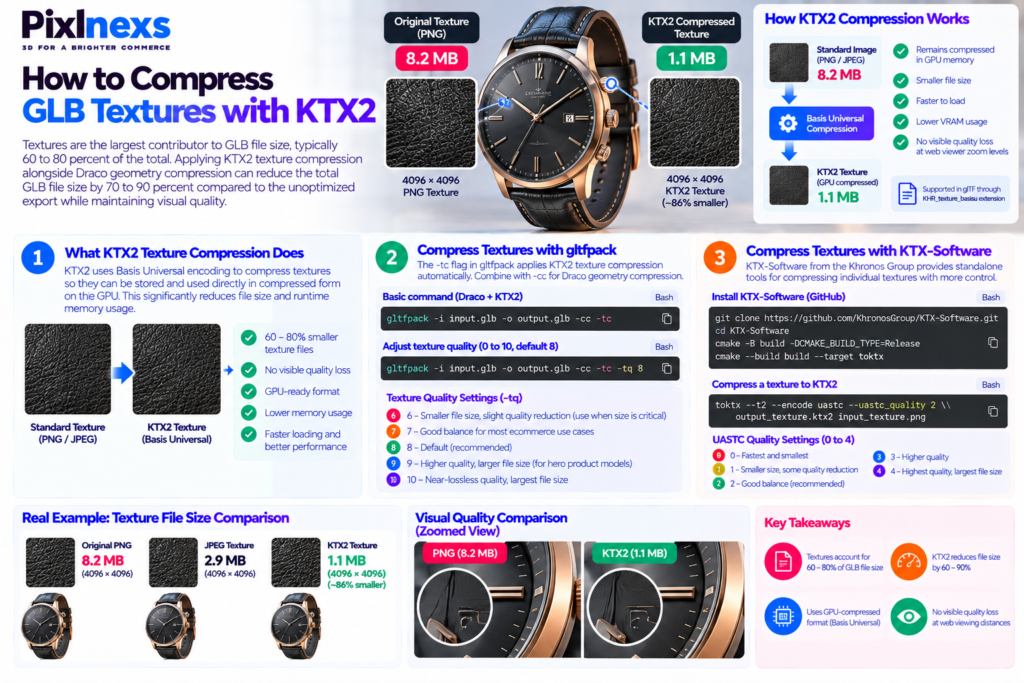
Textures are the largest contributor to GLB file size typically 60 to 80 percent of the total. Applying KTX2 texture compression alongside Draco geometry compression typically reduces the total GLB file size by 70 to 90 percent compared to the unoptimized export.
What KTX2 Texture Compression Does
KTX2 is a container format for GPU-compressed textures, supported in glTF through the KHR_texture_basisu extension. Unlike JPEG or PNG which are compressed for storage and transmission but must be decompressed to raw pixel data before the GPU can use them KTX2 textures using Basis Universal encoding remain compressed in GPU memory, which means they use less VRAM and can be uploaded to the GPU faster.
The practical effect is a significant reduction in both file size and runtime memory usage. A 4K PNG texture that is 8 megabytes as a standard PNG may be 1.5 megabytes as a KTX2-encoded file, with no perceptible visual difference at web viewer zoom levels.
Applying KTX2 Compression with gltfpack
The -tc flag in gltfpack applies KTX2 texture compression automatically to all textures in the GLB:
gltfpack -i input.glb -o output.glb -cc -tc
For texture quality control, the -tq flag adjusts the quality level (0 to 10, default 8):
gltfpack -i input.glb -o output.glb -cc -tc -tq 8
Setting -tq to 6 or 7 produces a slightly more aggressively compressed texture with a small but sometimes visible quality reduction useful when file size is the primary constraint. Setting it to 9 or 10 produces near-lossless texture quality at a larger file size appropriate for hero product models where visual quality is the primary constraint.
Applying KTX2 Compression with KTX-Software
The KTX-Software toolkit from the Khronos Group provides standalone tools for creating and processing KTX2 files. For studios that want fine-grained control over individual texture compression rather than applying a global quality setting to the whole model, using KTX-Software to compress individual textures and then reassembling the GLB with gltf-pipeline gives the most precise control.
Download KTX-Software from the Khronos Group GitHub repository. For each texture PNG or JPEG:
toktx –t2 –encode uastc –uastc_quality 2 output_texture.ktx2 input_texture.png
The –uastc_quality flag accepts values from 0 to 4 (0 is fastest and smallest; 4 is highest quality and largest). For ecommerce product models, 2 to 3 is the practical range that balances quality and size.
How to Reduce GLB File Size Through Polygon Reduction
Polygon reduction also called mesh decimation or LOD (Level of Detail) generation removes unnecessary geometry from the model’s mesh. It is a fundamentally different type of optimization from Draco compression: Draco compresses existing geometry data without changing the visual shape, while polygon reduction removes actual vertices and faces from the mesh, which can and does change the visible shape if taken too far.
When Polygon Reduction Makes Sense
Polygon reduction makes the most sense when the source model was built for offline rendering or product photography rather than for web delivery. High-fidelity product models produced for still renders may contain 500,000 to several million polygons a level of geometric detail that the GPU in a mobile device cannot handle at the frame rates required for smooth interaction and that is also largely invisible at web viewer zoom levels even on a desktop screen.
For ecommerce product viewers, the practical target polygon ranges are: under 50,000 triangles for simple single-material products (bottles, boxes, simple accessories); 50,000 to 150,000 triangles for medium-complexity products (shoes, bags, electronics); and 150,000 to 300,000 triangles for complex products (watches with intricate link bracelets, detailed furniture, mechanical assemblies). Models above these ranges should be decimated before Draco compression is applied, because compressing an over-polygoned model still produces a large file and a model that struggles to render on mobile.
For a deeper understanding of the relationship between polygon count and web delivery, see our guide on low poly vs high poly 3D models.
Polygon Reduction with Blender
Blender’s Decimate modifier is the most accessible polygon reduction tool for artists who prefer a GUI workflow.
Select the mesh object in Blender. In the Properties panel, go to the Modifier Properties tab (the wrench icon) and click Add Modifier → Decimate. In the Decimate modifier settings, set the Ratio value. A ratio of 0.5 reduces the polygon count by 50%; 0.25 reduces it by 75%. Start at 0.5, inspect the result at your target viewing distance and reduce further if the visual quality holds. When satisfied, click Apply to bake the decimation into the mesh before exporting.
Polygon Reduction with Simplygon
Simplygon is a professional optimization platform used by game studios and enterprise 3D teams for automated LOD generation and mesh simplification. Unlike Blender’s Decimate modifier (which applies a global polygon ratio without topology awareness) Simplygon’s algorithms are topology-aware they preserve edge loops and feature lines that define the product’s visible shape while removing geometry in areas where detail is not visually significant.
For brands producing large catalogs of 3D product models, Simplygon’s batch processing capability makes it the most efficient option it can process hundreds of models against a consistent polygon target automatically, without requiring per-model artist intervention.
Polygon Reduction with gltfpack
gltfpack’s -si flag applies simplification (polygon reduction) in addition to compression:
gltfpack -i input.glb -o output.glb -cc -tc -si 0.5
The -si value (0 to 1) controls the target simplification ratio 0.5 reduces the model to approximately 50 percent of its original polygon count. This is the most convenient approach for studios running compression as a pipeline step, since it combines geometry compression, texture compression and polygon reduction in a single command.
How to Compress a GLB File Online (Without Command-Line Tools)
For teams that do not have command-line access or are processing occasional one-off models rather than running a production pipeline, several browser-based tools provide GLB compression without requiring any software installation.
gltf.report
gltf.report is a browser-based GLB analysis and optimization tool. Upload a GLB file and it provides a detailed breakdown of the file’s contents polygon count, texture sizes, material count, file size breakdown by component and offers compression and optimization passes that can be applied and the compressed file downloaded. The Draco compression option and texture downsizing controls are accessible through the web interface without any command-line usage.
Modelviewer’s Built-In Glitch
Google’s model-viewer.dev documentation includes a Glitch-based editor that allows GLB files to be loaded and previewed, which is useful for visual quality verification after compression rather than for the compression itself.
Sketchfab’s Compression on Upload
Sketchfab automatically applies compression to uploaded 3D files, including GLB, as part of its processing pipeline. For brands using Sketchfab as their viewer solution, the platform’s own compression is applied automatically though the parameters are not user-configurable, which makes it less suitable for production pipelines where specific compression targets need to be met.
How to Compress a GLB File: Step-by-Step Workflow
Here is the complete, ordered compression workflow that Pixlnexs runs on every ecommerce product GLB before delivery structured as a repeatable pipeline rather than a collection of separate techniques.
Step 1 Assess the Uncompressed File
Before applying any compression, measure the baseline: file size, polygon count and texture inventory. gltf.report provides all three in a single upload. Note: the total file size, the geometry size, the texture sizes per map (base color, normal, roughness/metalness, occlusion) and the polygon count. These baseline measurements are what you compare the compressed output against to verify that compression is working as expected.
Step 2 Reduce Polygons If Necessary
If the model’s triangle count exceeds the target range for its complexity level (approximately 50,000 to 150,000 triangles for typical ecommerce products) apply polygon reduction first. In Blender, use the Decimate modifier. Via command line, use gltfpack’s -si flag. Compare the decimated model at the intended viewing distance before proceeding if any visible shape degradation is apparent, increase the ratio (reduce less aggressively) until the visual quality is acceptable.
Step 3 Apply Draco Compression
Run the Draco-compressed export. Using gltfpack:
gltfpack -i input.glb -o output_draco.glb -cc
Measure the file size of the output and compare against the baseline. For a well-structured product model, Draco compression alone typically achieves a 50 to 80 percent reduction in total file size before texture compression is applied.
Step 4 Apply KTX2 Texture Compression
Apply KTX2 texture compression in the same gltfpack pass or as a separate step:
gltfpack -i input.glb -o output_compressed.glb -cc -tc -tq 8
Measure the file size again and compare. After both Draco and KTX2 compression, total file size reduction of 70 to 90 percent from the baseline is typical for ecommerce product models.
Step 5 Visual Quality Verification
Open both the uncompressed original and the compressed output in the Khronos glTF Viewer (gltf.report or the Khronos reference viewer) and compare side by side. Check: overall shape accuracy at normal viewing distance, texture clarity at maximum zoom, material response (metalness, roughness, specular) and any visible compression artifacts particularly in areas with fine surface detail or smooth gradients.
If artifacts are visible, adjust the compression parameters increase the Draco quantization bits or raise the KTX2 quality level and re-run until the visual output meets the quality bar.
Step 6 Mobile Performance Testing
The final verification is a real-device performance test: load the compressed GLB in a product page viewer on a mid-range Android device on a 4G connection (not Wi-Fi) and measure the actual load time from page load to interactive viewer. This real-device test is the only reliable measure of whether the compression has achieved the target user experience desktop browser testing on a fast Wi-Fi connection is not representative of the conditions that matter most. For the full pre-launch testing checklist, see our guide on how to test 3D and AR product pages before launch.
GLB Compression Tools Comparison
| Tool | Type | Draco | KTX2 | Polygon Reduction | Best For |
|---|---|---|---|---|---|
| gltfpack | CLI (free) | Yes | Yes | Yes (-si flag) | Production pipelines; full compression in one command |
| gltf-pipeline | CLI (free) | Yes | No | No | Draco compression with fine quantization control |
| Blender GLB exporter | GUI (free) | Yes | No | Yes (Decimate modifier) | Artists who prefer a GUI; Blender-based pipelines |
| gltf.report | Browser (free) | Yes | Partial | No | One-off compression; visual inspection; no CLI access |
| KTX-Software | CLI (free) | No | Yes | No | Per-texture KTX2 compression with fine quality control |
| Simplygon | SDK (commercial) | Via export | Via export | Yes (topology-aware) | Large catalog batch processing; enterprise pipelines |
Common Mistakes When Compressing GLB Files
Over-Decimating and Losing Visible Shape
The most common and most damaging mistake in polygon reduction is removing too many polygons and changing the visible silhouette or surface quality of the model. A can that was a perfect cylinder with a smooth rim profile becomes visibly faceted at 80% polygon reduction. A watch bezel with fine geometry loses its sharp edge definition. The fix is conservative decimation: reduce polygons in areas where detail is genuinely not visible at the target zoom level and preserve geometry in areas that define the product’s visual identity.
Applying Compression Without Checking Viewer Compatibility
Draco compression requires that the viewer rendering the GLB supports the KHR_draco_mesh_compression extension. All major web viewers (Google model-viewer, Three.js with the DRACOLoader, Babylon.js) support it but some older or custom viewer implementations do not. Before applying Draco compression to a model that will be deployed to a specific viewer, confirm that viewer’s extension support in its documentation.
Compressing Textures Without a Visual Check
KTX2 compression can introduce banding or block artifacts in textures with smooth color gradients or subtle material transitions particularly in normal maps and occlusion maps. Always visually verify compressed textures at the maximum zoom level a user might reach in the product viewer. Banding in a normal map makes smooth curved surfaces look faceted, which can be more visually damaging than a slightly larger file size.
Not Testing on a Real Mobile Device
Desktop browser performance is not representative of mobile performance for 3D viewer load times. An 8 megabyte GLB that loads in under a second in Chrome on a MacBook with a fast Wi-Fi connection may take four to six seconds to load on a mid-range Android device on a 4G connection and four to six seconds loses most shoppers. Always measure real-device load time as the final quality gate.
Ignoring Lazy Loading
File size compression reduces download time but an eagerly loading 3D viewer that initializes at page load even with a small, well-compressed GLB can still hurt Core Web Vitals scores by blocking the browser’s critical rendering path. Lazy loading (initializing the viewer only when the product section enters the viewport) is necessary alongside file compression for a complete page performance solution. For more on this, see our guide on how to optimize 3D models for fast web loading.
Target File Sizes for Compressed GLB Files
These are the practical file size targets our production team works to for ecommerce product models, after full Draco and KTX2 compression:
Simple products (single material, simple geometry bottles, boxes, basic accessories): under 1 MB.
Standard ecommerce products (shoes, bags, small electronics, watches): 1 to 4 MB.
Complex products (detailed furniture, mechanical assemblies, multi-component electronics): 4 to 8 MB.
Hero showcase models (flagship products where visual quality is the priority over load time): up to 10 MB, with lazy loading mandatory.
Models above these targets should go back through the polygon reduction and texture compression steps before being considered production-ready. A model that is visually excellent but 15 megabytes has failed the optimization process even if it looks correct.
GLB Compression and AR: Special Considerations
Compressed GLB files are used directly for Android AR via Google Scene Viewer the same compressed GLB that serves the web viewer is the AR asset for Android. For iOS AR Quick Look, a USDZ file is required rather than GLB. USDZ does not support Draco compression in its current specification, so the USDZ export is generated separately from the optimized GLB source, not from the Draco-compressed version.
This means a complete web and AR delivery package for a product model consists of:
One Draco and KTX2 compressed GLB for the web viewer and Android AR.
One USDZ file for iOS AR Quick Look, exported from the same source geometry before Draco compression is applied.
For the full explanation of GLB and USDZ format differences and delivery requirements, see our guide on GLB vs USDZ vs OBJ: 3D file formats explained.
Need production-ready GLB models that are already compressed and web-optimized?
Pixlnexs delivers every product model compressed, visually verified and mobile load-time tested so you get a file that is ready to embed on your store, not one that requires further processing.
Get a Web-Ready 3D Model Talk to Our TeamConclusion
Compressing a GLB file without losing quality is a combination of four techniques applied in sequence: polygon reduction if the model exceeds the target polygon range for its complexity level, Draco geometry compression for the mesh data, KTX2 texture compression for the image maps and lazy loading in the web implementation so the viewer does not block page rendering. Together, these techniques typically reduce a 20 to 80 megabyte unoptimized export to a 1 to 8 megabyte production-ready GLB that loads in under two seconds on a mobile device.
The tools are free gltfpack handles the entire compression pipeline in a single command and gltf.report provides visual verification. The process is repeatable as a production pipeline step, not a one-time manual task. The output is a 3D model that loads fast, looks correct and works as an AR asset for Android without any additional processing.
If you need production-ready GLB models delivered already optimized compressed, verified and tested for mobile load time that is exactly what Pixlnexs delivers with every product model.
Frequently Asked Questions About GLB Compression
What is the best tool to compress a GLB file?
gltfpack is the most capable free tool for GLB compression, handling Draco geometry compression, KTX2 texture compression and polygon reduction in a single command. For browser-based compression without command-line access, gltf.report provides a visual interface with Draco and texture compression options. For production pipelines with large model volumes, Simplygon offers batch processing with topology-aware mesh simplification.
Does Draco compression change how the model looks?
No Draco compression is lossless in terms of visual appearance at any practical quantization setting for web use. The technical answer is that Draco uses quantization that introduces a very small rounding error in vertex positions but at the default settings (14-bit position quantization) this error is thousands of times smaller than a pixel at normal viewing resolutions. The model looks identical to the uncompressed version.
How much does Draco compression reduce GLB file size?
Typically 50 to 90 percent reduction in the geometry portion of the GLB file. For a model where geometry is the dominant contributor to file size, this results in a similar total file size reduction. For models where textures are the dominant contributor (which is most ecommerce product models) Draco alone may only reduce total file size by 20 to 30 percent KTX2 texture compression is required to achieve the full 70 to 90 percent total reduction.
Can I compress a GLB file for free?
Yes. gltfpack, gltf-pipeline and KTX-Software are all free and open-source. The Blender glTF exporter’s Draco option is free. gltf.report provides browser-based compression for free. There is no requirement to purchase commercial software to produce a well-compressed GLB for ecommerce use.
Does KTX2 texture compression affect visual quality?
KTX2 using Basis Universal encoding is a lossy compression at the technical level meaning it does remove some texture data but at the quality settings appropriate for ecommerce product viewers (quality level 7 to 9 in gltfpack) the output is visually indistinguishable from the uncompressed original at standard web viewing distances. At maximum zoom, very subtle differences may be visible in areas with smooth color gradients. A visual check at maximum zoom level is the appropriate quality gate.
What polygon count should a GLB ecommerce model have?
For typical ecommerce product viewers: under 50,000 triangles for simple products, 50,000 to 150,000 for standard products and 150,000 to 300,000 for complex products. These are not hard limits the specific target should be validated through real-device performance testing rather than applied as an absolute rule, since different viewers and devices handle polygon budgets differently.
Why is my GLB file still large after Draco compression?
If the file is still large after Draco compression, textures are almost certainly the dominant contributor. Run the file through gltf.report to see the size breakdown if textures account for most of the file size, apply KTX2 texture compression via gltfpack’s -tc flag or by processing textures individually with KTX-Software. Alternatively, check whether textures are at unnecessarily high resolution (4K textures on a simple product that is never viewed at large scale) and reduce the resolution before compression.
Do all 3D viewers support Draco-compressed GLB files?
All major web viewers support Draco: Google model-viewer, Three.js (with the DRACO Loader module) Babylon.js and Bezel. Most ecommerce platform native viewers (Shopify, some WooCommerce plugins) also support Draco. Custom or legacy viewer implementations may not always check the specific viewer’s documentation before deploying Draco-compressed files.
Related guide
What Is a GLB File? GLB 3D Models for Ecommerce (2026)









Leave a Reply