
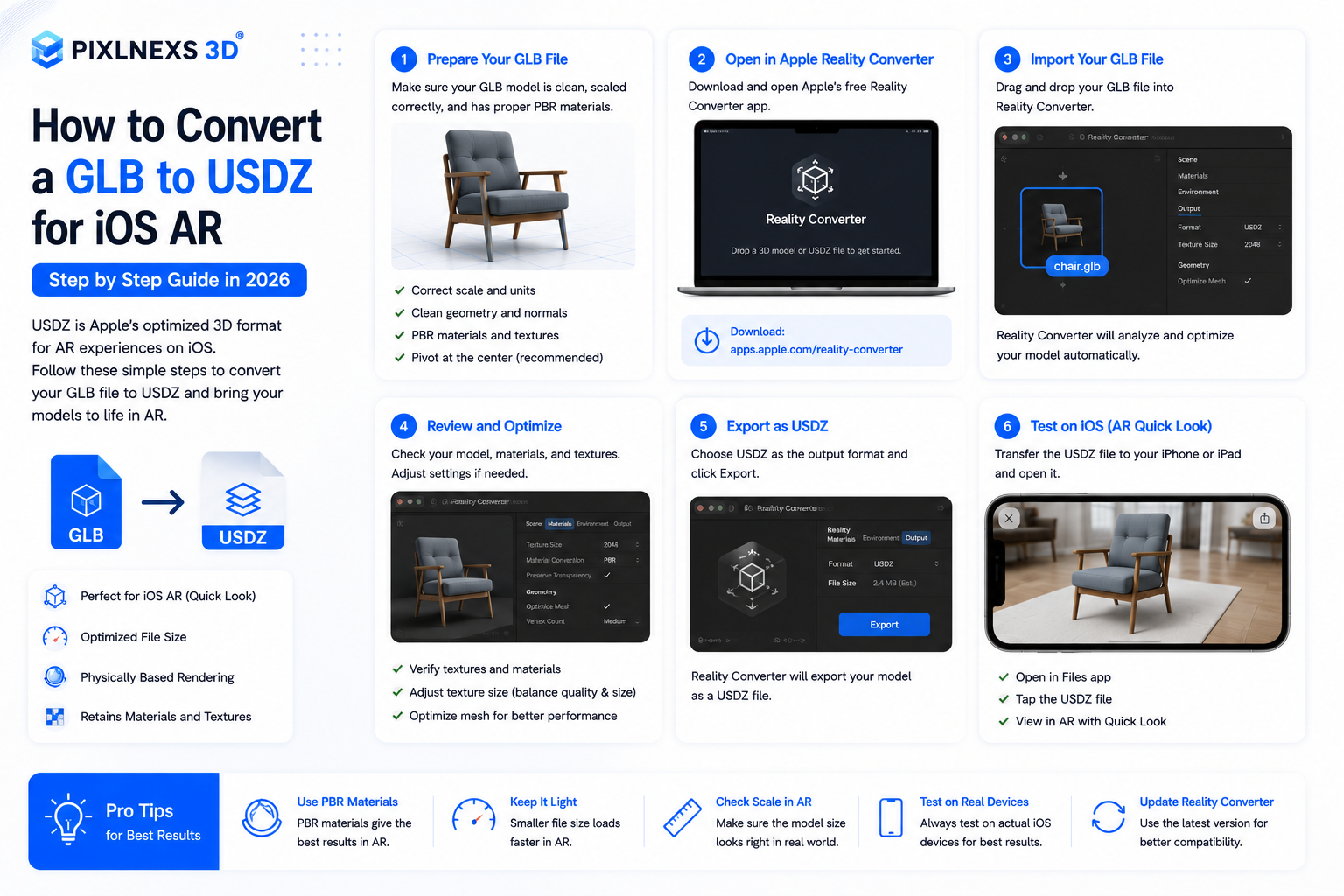
Quick answer: Converting GLB to USDZ is the process of taking a glTF Binary (.glb) file and producing an Apple Universal Scene Description Zip (.usdz), since the iPhone/iPad renders AR Quick Look only from USD family of files. There are three possible ways which will work for most people: free Apple’s Reality Converter application running under macOS; usdzconvert utility of Apple USD Python package; browser-based converter. Drag your GLB in, confirm the materials and scale survived, then preview the .usdz on an actual iPhone before publishing. Most simple, single-mesh models convert in under a minute. Complex models with animation, transparency or multiple materials need a quick QA pass to fix what slipped.
By the Pixlnexs Animation Studio team. We produce AI video and 3D content and run the marketplace at store.pixlnexs.com, so this reflects real production experience.
For example, if you have constructed or purchased a 3D model in GLB format and would like your users who use iPhones to click a button and put this model in their living room, you will require USDZ format. In this guide, we will go through all the techniques that work, all the things that stop working when converting and how to verify that the result is correct. We convert GLB to USDZ constantly for the marketplace and the same handful of issues come up every time, so we will name them up front.
Why GLB and USDZ exist, and why you need both
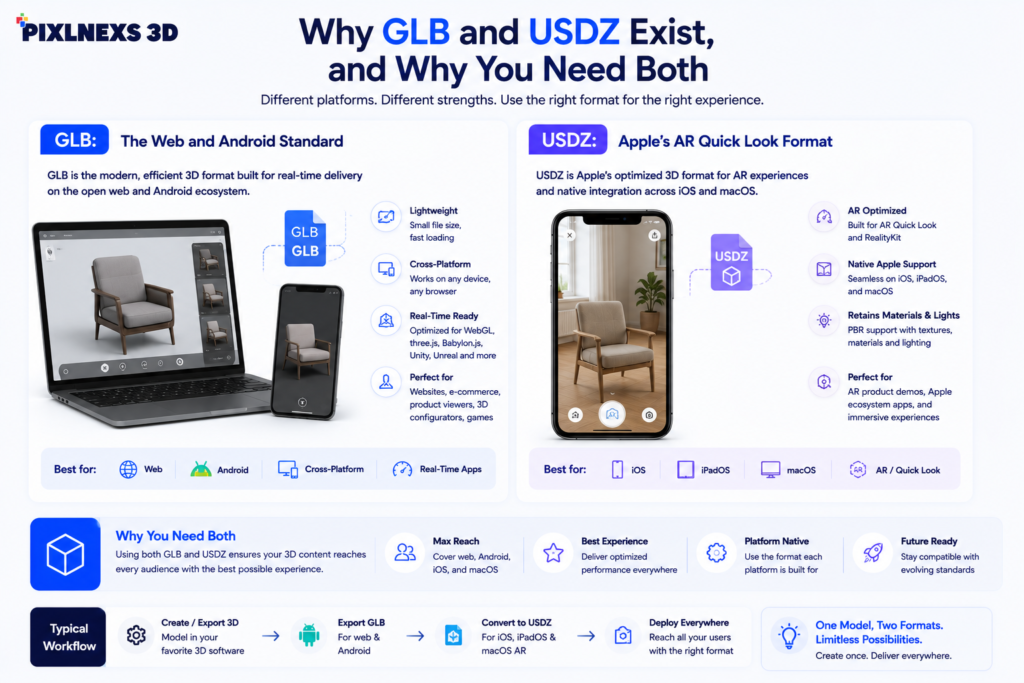
GLB and USDZ solve the same problem, shipping a complete 3D model in one file, for two different ecosystems. Once you understand the split, you stop guessing about which file goes where.
GLB: the web and Android standard
The GLB file format is the binary version of glTF, which is an open file format under the control of the Khronos Group. The GLB format is referred to as the JPEG of 3D, because it is a compressed file format that is very popular and intended for quick transmission via the Internet. Geometry, materials, textures and animations are all embedded in a single file with the .glb file extension. GLB format is directly supported by the Android Scene Viewer, all web-based 3D viewers and web component. If open web and Android were your only target platforms, you would be done with GLB.
USDZ: Apple’s AR Quick Look format
USDZ is a zipped package built on Pixar’s Universal Scene Description (USD). Apple adopted it as the single format for AR Quick Look, the system feature that lets users drop 3D objects into the real world straight from Safari, Messages, Mail, and apps on iPhone and iPad, with no app install. iOS will not render GLB in AR Quick Look at all. So if any of your audience is on Apple hardware, USDZ is not optional. It is the entry ticket.
| Aspect | GLB (glTF Binary) | USDZ (USD Zip) |
|---|---|---|
| Maintained by | Khronos Group (open standard) | Pixar USD, adopted by Apple |
| Primary platforms | Web, Android Scene Viewer | iOS / iPadOS AR Quick Look |
| Single self-contained file | Yes | Yes |
| Animation support | Strong | Supported, with caveats |
| Typical web role | Source / desktop + Android viewer | iOS fallback served alongside GLB |
In practice you usually keep your GLB as the master and generate a USDZ sibling. A page using <model-viewer> serves the GLB to most browsers and hands the USDZ to iOS automatically. That is why “convert GLB to USDZ” is one of the most common jobs in any AR pipeline.
The three reliable ways to convert GLB to USDZ
There is no single official universal converter, but three approaches cover essentially every workflow. Pick based on how many files you have and whether you are on a Mac.
Method 1: Reality Converter (Mac, free, easiest)
Apple ships a free macOS app called Reality Converter that is purpose-built for this. It is the path we recommend for anyone on a Mac doing a handful of models.
- Download Reality Converter from Apple’s developer downloads (it is listed under AR tools on developer.apple.com).
- Open the app and drag your .glb file into the window.
- The app converts on the fly and shows a live 3D preview with environment lighting.
- Click through each material in the sidebar to confirm base color, metalness, roughness, and any normal or opacity maps came across.
- Choose File > Export and save as .usdz.
Reality Converter is forgiving, and it lets you swap textures or tweak materials before export, which makes it the best place to catch problems visually.
Method 2: usdzconvert command line (scriptable, cross-platform-ish)
For batch jobs, like converting a whole catalog, the command line wins. Apple distributes USD Python tools that include a usdzconvert utility. After installing the USD Python toolchain, a basic conversion is one line:
usdzconvert input.glb output.usdz
You can wrap this in a loop to process an entire folder, set it as a build step or run it on a server so every uploaded GLB produces a USDZ automatically. This is exactly the kind of automation we use behind a marketplace where models arrive in bulk. The trade-off is setup.The process of installing USD tools can be more complicated than getting an app since it thrives in a Unix based environment. One should expect to waste at least an hour resolving dependency issues the first time after the success on one particular device it will succeed everywhere else.
Method 3: Browser-based converters (quick, no install)
Several reputable web tools convert GLB to USDZ in the browser with a drag-and-drop. They are perfect for a single test model when you are not on a Mac and do not want to install anything. The caution: you are uploading your asset to a third party, so do not feed a random free converter your unreleased or licensed client work. For one-off public models they are genuinely convenient. For production or confidential assets, prefer Reality Converter or your own usdzconvert pipeline.
Step-by-step: a clean GLB-to-USDZ conversion
Here is the workflow we actually follow, written so it works regardless of which method you chose.
Step 1: Prepare and sanity-check the GLB first
Garbage in equals garbage out. Before any conversion take place, inspect the GLB in any viewing tool (web’s or a desktop viewer), ensuring three things: the model is upright, with Y being vertical; the model is at the appropriate real-life scale, which means that for instance, the chair should be approximately one meter high and not a thousand; and the textures are visible.
Step 2: Run the conversion
Drag into Reality Converter, run usdzconvert input.glb output.usdz, or upload to a browser tool. The conversion itself is usually fast.
Step 3: Inspect materials and transparency
This is where most defects hide. Confirm metallic and roughness values look right, normal maps are present and any glass or transparent material renders correctly. Transparency is the single most common thing to break in translation between GLB and USD material models. If a transparent part renders fully opaque or fully invisible, you will need to adjust the material’s opacity setting in Reality Converter and re-export.
Step 4: Validate on a real iPhone
Never rely only on the desktop preview. Export the file into a page or AirDrop it to your iPhone and open it using the AR Quick Look feature by placing it within the actual room. Measure its dimensions with the actual pieces of furniture and verify that the shadows and reflection are realistic. A model that seems great while viewing it on your laptop will definitely appear incorrect once placed in its proper size in the room. The best example would be of a side table appearing perfect while viewing but knee-high once placed next to a sofa.
Step 5: Optimize file size for the web
AR Quick Look downloads from the network and big models lead to user drop-offs since there is not enough time to load the model. Guidelines from Apple regarding AR Quick Look suggest that it is best practice to have light models. In general, try to keep USDZ models light (one-digit megabytes should be the target for product models) by minimizing the number of polygons and optimizing textures up to the size you really need (usually it is 2048px or less for one map).
What commonly breaks (and how to fix it)
After many conversions, the failure modes are predictable. Knowing them turns a frustrating afternoon into a five-minute fix.
| Symptom | Likely cause | Fix |
|---|---|---|
| Model is huge or tiny in AR | Wrong unit scale in source GLB | Set real-world scale in the GLB before converting |
| Model lies on its side | Z-up vs Y-up axis mismatch | Re-export GLB with Y up, or rotate before export |
| Glass looks solid or invisible | Transparency not mapped to USD opacity | Adjust opacity in Reality Converter and re-export |
| Textures missing or gray | Unsupported texture packing or path | Re-embed textures; confirm base color map in materials panel |
| Animation does not play | Complex or multiple animation tracks | Simplify to one clip; test on device |
| File too large, slow to load | High poly count and oversized textures | Decimate mesh, resize textures to 2K or less |
If you hit a defect the converter will not resolve, the fix almost always belongs back in the source file. Repair the GLB, then convert again. Patching USDZ by hand is rarely worth it.
When to convert yourself vs. start from a USDZ-ready asset
If you are producing models in-house, building conversion into your pipeline is worth it. You control quality and can batch. If you are sourcing models, it is often faster to buy assets that already ship clean, real-world-scaled GLB and tested USDZ together, so you skip the QA loop entirely. Our marketplace at store.pixlnexs.com is built around exactly that: optimized, AR-ready 3D models you can drop into a product page without fighting the conversion. Either way, the validation steps above still apply. Always test on a real device before you publish.
Conclusion
It is pretty simple once you get the idea that each file format has its own intended purposes. GLB is the most suitable file format for web viewing and Android phones while USDZ file format must be used for creating augmented reality viewing with Apple’s AR Quick Look for iPhone and iPads. Irrespective of whether you choose to use Reality Converter, USD tools from Apple or any other reliable online GLB to USDZ converter, the actual conversion will take no more than a few seconds.
As far as the production pipeline is concerned, it is advisable to regard conversion as just one part of the workflow process. Validate the final USDZ in the real iPhone or iPad device, make the file size optimal and solve all the problems in the original GLB file.
If you find yourself publishing 3D products on eCommerce sites on a consistent basis for furniture, home décor, fashion, or consumer products, then it makes sense to incorporate GLB to USDZ conversion into your content process, or to go straight to having your 3D models already optimized and proven to work for the web and for iOS from the start.
Frequently asked questions
Can I convert GLB to USDZ without a Mac?
Yes. The command-line USD tools run in Unix-like environments and on servers, and several browser-based converters work on any operating system. Reality Converter is Mac-only, but it is not the only option. For confidential or licensed assets, prefer a self-hosted command-line pipeline over public web converters.
Is USDZ better than GLB?
Neither is “better.” They serve different platforms. GLB is the standard for the web and Android, and USDZ is required for iOS AR Quick Look. A complete AR experience usually ships both: GLB as the master and for most browsers, USDZ as the iOS sibling.
Does converting GLB to USDZ lose quality?
Geometry transfers cleanly, but material translation is imperfect because GLB and USD use slightly different material models. Transparency, certain advanced shader effects, and multiple animation tracks are the most likely to need manual correction. Always inspect materials after conversion rather than assuming a 1:1 result.
How big should a USDZ file be for AR Quick Look?
Smaller is better because the file loads over the network on demand. There is no hard limit, but keeping product models in the low single-digit megabytes is a good practical target. Reduce polygon count and resize textures (often to 2048px or less) to get there without visible quality loss.
Why does my converted model load sideways or at the wrong size?
That is almost always an axis or unit-scale problem in the source GLB, not the converter. iOS AR Quick Look expects Y-up orientation and real-world meters. Fix the orientation and scale in the GLB, then re-convert. It is far easier than editing the USDZ.
Will animation survive the conversion?
A single, simple animation clip usually converts fine. Models with multiple animation tracks or complex rigs are less reliable and may need to be simplified to one clip before export. Test animated models directly on an iPhone, since desktop previews do not always reflect AR Quick Look playback.
Do I need to convert every GLB to USDZ for my store?
Only if you want AR on iPhone and iPad, which is most product-visualization use cases. If your audience is iOS-heavy, treat USDZ as required. You can automate the conversion server-side so every uploaded GLB produces a USDZ automatically.
Related guides
- AR Product Visualization: Let Shoppers Place Products in Their Room (hub)
- USDZ Files Explained: How to Create AR Quick Look Assets for iPhone
- 3D Models for VR and the Metaverse: Optimization and Format Guide
External references: the Khronos Group glTF overview for the GLB standard, Apple’s AR Quick Look documentation for USDZ requirements, and the Universal Scene Description background on Wikipedia.
Get render-ready GLB/USDZ 3D models in the Pixlnexs store. Go now →
Related guide: 3D models for games, AR/VR & ecommerce.
Want to check a GLB file yourself? Open it in the free online GLB viewer to rotate, zoom and inspect any .glb model in your browser.






Leave a Reply