
Quick answer:
AI avatars for training videos let you turn a script into a polished, narrated talking-head video without booking a presenter, a studio or a reshoot every time the content changes. You type or paste your L&D script, choose a presenter and voice and the system generates a lip-synced video you can update line-by-line later. For corporate training and L&D teams, the real win isn’t the first video. It’s the tenth revision. Compliance copy, product details and policy wording change constantly and an avatar lets you re-render in minutes instead of re-shooting.
The honest trade-off: avatars still read as “produced by software” on close inspection, so they shine for explainer, onboarding, SOP and microlearning content rather than emotional leadership messages. Our recommendation is to use AI avatars as the default engine for high-volume, frequently-updated training and bring in a real presenter only for the few videos where executive presence genuinely matters. If you’d rather have it done for you, Pixlnexs Animation Studio produces these end to end.
By the Pixlnexs Animation Studio team, we produce AI video and 3D content and run store.pixlnexs.com, so this reflects real production experience.
Pixlnexs Animation Studio builds AI avatar, talking-head, and 3D product videos for corporate training and ecommerce teams.
If you run learning and development, you already know the bottleneck. It’s rarely the idea for a course. It’s producing the video, keeping it accurate and re-recording it every time a process, a regulation or a product detail changes. A traditional shoot locks your content to a specific day, a specific presenter and a specific script. The moment HR rewrites the harassment policy or product renames a feature, your beautifully shot module is out of date and expensive to fix.
AI avatars, sometimes called talking-head or synthetic-presenter videos, change that math. A digital presenter delivers your script on camera, lip-synced to AI-generated speech and the underlying “footage” is just text and settings you can edit. This guide walks through how AI avatars for training videos actually work, where they earn their keep, where they fall short and how to decide between doing it yourself and having a studio produce it.
Key takeaways
- AI avatars turn a script into a lip-synced video no presenter, studio, or reshoot needed for every content change.
- The real value is in revisions, not the first video. Compliance, product, and policy content changes constantly, and avatars let you re-render in minutes.
- Avatars still read as “produced by software” up close they’re a strong fit for onboarding, SOPs, compliance refreshers, and microlearning, but a weaker fit for leadership or emotionally sensitive messages.
- Localization is the biggest hidden win the same avatar video can be re-voiced into multiple languages without a reshoot.
- Consent is non-negotiable cloning a real person’s face or voice requires explicit, written, time-bounded permission.
- Do it yourself for simple, repetitive updates; hire a studio when you need a polished, on-brand library fast or need help with compositing and governance.
How AI avatars for training videos work
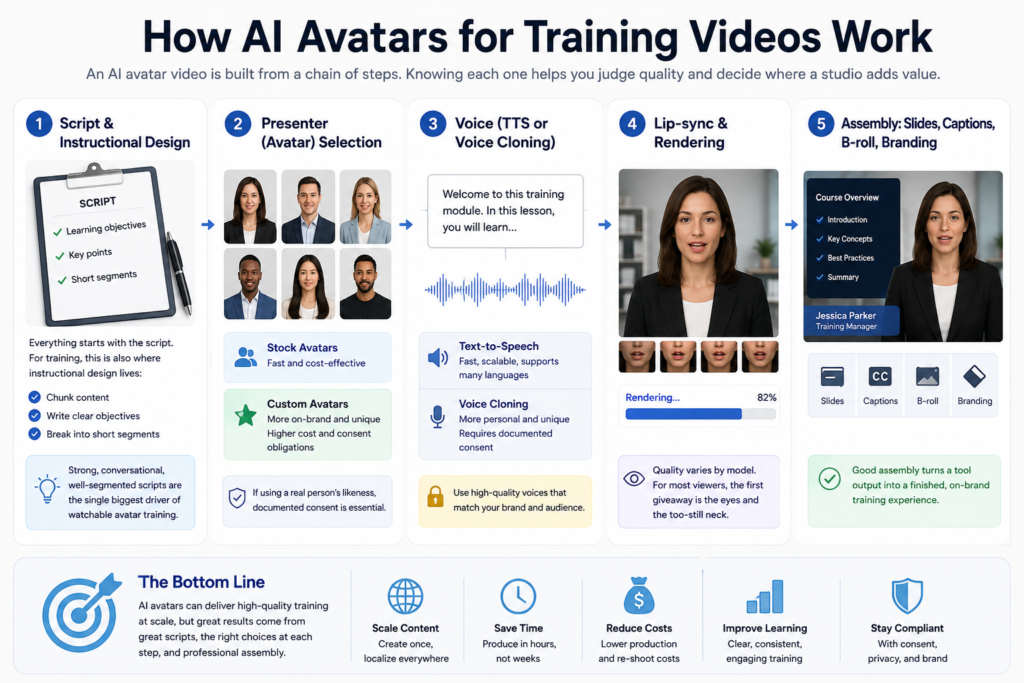
An AI avatar video is built from a chain of steps. Knowing each one helps you judge quality and decide where a studio adds value.
1. Script and instructional design
Everything starts with the script. For training, this is also where instructional design lives: chunking content, writing clear learning objectives and breaking a topic into short segments. AI avatars are unforgiving of bad scripts. A synthetic presenter reading a wall of jargon is worse than a human doing the same, because there’s no spontaneous warmth to rescue it. Strong, conversational, well-segmented scripts are the single biggest driver of watchable avatar training.
2. Presenter (avatar) selection
You choose a digital presenter from a library or commission a custom avatar. That can include, in some workflows, a likeness of a real person such as your CEO or a subject-matter expert who has consented to be filmed once and “reused.” Stock avatars are fast and cheap. Custom avatars feel more on-brand but cost more and carry consent obligations.
3. Voice (text-to-speech or voice cloning)
The script is spoken by a neural text-to-speech voice or by a cloned voice that matches a specific person. Modern TTS is good enough for instructional narration in many languages, which is what makes avatars so useful for localizing the same course across regions. Voice cloning sounds more personal but, like custom avatars, requires documented consent.
4. Lip-sync and rendering
The system aligns mouth movements to the generated speech and renders the talking-head video. This is the step that ranges from “clearly synthetic” to “surprisingly natural,” depending on the model. For close-up, single-presenter framing it can be convincing. Rapid head movement and strong emotion are still where the seams show. In practice, the giveaway most viewers notice first isn’t the mouth at all; it’s the eyes and the slightly-too-still neck on a long take.
5. Assembly: slides, captions, b-roll, branding
A training video is rarely just a head talking. The avatar is composited with on-screen text, screenshots, diagrams, lower-thirds, captions and your brand template. This assembly layer is where most “DIY avatar” videos look amateur and where production experience matters most. It’s the difference between a tool output and a finished course module.
Where AI avatars genuinely fit and where they don’t
Being honest about fit is the fastest way to a good decision. Avatars are excellent for some training and a poor choice for others.
Strong fit
- Onboarding and HR explainers: repetitive, frequently updated, watched by everyone.
- Standard operating procedures (SOPs): step-by-step content that changes as processes change.
- Compliance and policy refreshers, where exact wording matters and gets revised often.
- Product and software training: pairs the avatar with screen recordings; easy to re-render when the UI changes.
- Multilingual rollouts: the same module re-voiced in several languages without re-shooting.
- Microlearning: short, high-volume clips where a full shoot is never worth it.
Weaker fit
- Executive and culture messages, where leadership presence and authenticity are the point and viewers want a real human.
- Emotionally sensitive topics: bereavement, layoffs, safety incidents, DEI nuance.
- Roleplay and soft-skills demos, where natural two-person interaction is still hard to fake well.
- Hands-on physical demonstrations, anything that needs real objects, environments or human dexterity on camera.
AI avatars vs. live-action shoots vs. screen-recording courses
There’s no single “best” format. The right choice depends on how often your content changes and how much human presence the topic needs. The table below compares them on real, qualitative dimensions, not invented numbers.
| Dimension | AI avatar video | Live-action shoot | Screen-recording / voiceover course |
|---|---|---|---|
| On-camera human presence | Synthetic presenter (reads as produced-by-software up close) | Real, authentic presence | None, voice and screen only |
| Cost to update after launch | Low, edit text and re-render | High, usually a reshoot | Low to medium, re-record affected sections |
| Speed to first version | Fast once the script is final | Slow, scheduling, crew, location | Fast |
| Localization to new languages | Strong, re-voice the same video | Expensive, re-shoot or dub | Medium, new voiceover track |
| Best for | High-volume, frequently changing training | Leadership, culture, emotional topics | Software and process walkthroughs |
| Main limitation | Less authentic for human-centric messages | Cost and rigidity | No face on screen reduces engagement for some |
In practice, mature L&D teams blend all three: avatars for the always-changing core curriculum, screen recordings for software and the occasional live shoot for the moments that demand a real human. If you want help producing any of these, see Pixlnexs Animation Studio’s video services.
A practical production workflow for L&D teams
Here’s the workflow we use to keep avatar training accurate and watchable over time.
Step 1, Write for the ear, segment for the screen
Draft a conversational script, then break it into short segments in our production work this is usually 30 to 90 seconds mapped to learning objectives. Short segments are easier to update and easier to re-render in isolation when one fact changes. What actually happens if you skip this: a single policy edit forces you to re-render a ten-minute monolith and you lose the whole point of going avatar in the first place.
Step 2, Standardize a template
Lock your brand colors, fonts, intro/outro, lower-thirds and caption style once. Every future module reuses the template, which is what makes a library look professionally produced rather than tool-generated.
Step 3, Choose presenter and voice intentionally
Pick a presenter and voice that match your audience and stick with them across a course series for consistency. If you clone a real person’s face or voice, capture written consent and define how long and for what the likeness may be used.
Step 4, Composite, don’t just render
Layer the avatar with diagrams, screenshots, on-screen text and accurate captions. Captions aren’t optional. They support accessibility and the many learners who watch muted at their desk.
Step 5, Version and govern
Keep the editable source (the script and project), not just the exported MP4. Treat each module like a living document with an owner and a review date, so the next policy change is a five-minute re-render instead of a project.
Consent, accuracy and accessibility you can’t skip
AI avatars raise governance questions that traditional video does not. Treat these as non-negotiable.
- Likeness and voice consent. If an avatar resembles a real employee or executive, get explicit, written, time-bounded consent. Cloning a real person without permission is both an ethical and legal risk.
- Factual accuracy. A synthetic presenter says exactly what the script says, confidently, even when it’s wrong. Route compliance and policy scripts through the same legal/SME review you’d use for any official communication.
- Disclosure. Many organizations choose to note that a presenter is AI-generated. It builds trust and heads off the “is this real?” distraction.
- Accessibility. Provide accurate captions and, where required, transcripts so your training meets accessibility standards such as the W3C Web Content Accessibility Guidelines (WCAG).
- Data handling. Know where scripts and any likeness data are processed and stored, especially for HR and compliance content.
For background on the underlying technology and its broader implications, the Wikipedia overviews of synthetic media and speech synthesis are a useful, neutral starting point.
Who should choose what
- Choose a self-serve avatar tool if you have an in-house creator, a steady stream of simple updates and you’re comfortable owning script quality, templating and governance yourself.
- Choose a studio (done-for-you) if you need a polished, on-brand course library fast, want custom avatars or voices set up correctly with consent or lack the time to handle compositing and accessibility well. This is where Pixlnexs Animation Studio fits; we produce the full module, not just the raw avatar clip.
- Keep a real presenter for leadership, culture and emotionally sensitive content where authenticity is the message.
- Browse ready-made 3D and visual assets at store.pixlnexs.com when you want product models, prop or scene elements to enrich a training video beyond a talking head.
See what a studio-produced avatar module looks like.
Ready to build your training library?
If your team is drowning in re-shoots and out-of-date modules, AI avatars are the most direct fix and you don’t have to assemble the workflow alone. Pixlnexs Animation Studio can script, produce and template a full set of avatar-led training videos, set up custom presenters and voices with proper consent and hand you an editable system so future updates take minutes. Tell us what you need to train people on and we’ll show you a sample before you commit.
Frequently asked questions
Are AI avatars good enough for professional corporate training?
Yes, for the right content. For onboarding, SOPs, compliance refreshers, product training and microlearning, AI avatars produce clear, consistent, easily updated videos that learners accept well, especially when paired with strong scripts, captions and on-screen visuals. They are a weaker choice for leadership messages and emotionally sensitive topics, where a real presenter still wins.
How are AI avatars different from a screen-recorded course?
A screen-recorded course shows your software or slides with a voiceover and no face on screen. An AI avatar adds a synthetic on-camera presenter, which can lift engagement and give modules a more “broadcast” feel. The two are complementary: many of the best software-training modules combine an avatar intro with screen-recording walkthroughs.
Can I use my CEO’s or an expert’s face and voice?
Often yes, with explicit written consent. Custom avatars and voice clones let a single recorded session represent that person across many videos and languages. Never clone a real person’s likeness or voice without documented, time-bounded permission. It is both an ethical and a legal risk.
How do I update an AI avatar video when policy changes?
You edit the script and re-render. There is no reshoot. This is the core advantage for L&D: when a regulation, process or product detail changes, you change the affected lines and regenerate that segment, usually in minutes. Keeping the editable project file (not just the exported MP4) is what makes this fast.
Do AI avatar training videos support multiple languages?
Yes. Because the narration is generated from text, the same video can be re-voiced into many languages without re-shooting, which makes avatars especially valuable for global rollouts. Quality varies by language, so have a native speaker review the final track for high-stakes compliance content.
Should I do it myself or hire a studio?
Do it yourself if you have an in-house creator and mostly simple, repetitive updates. Hire a studio when you need a polished, on-brand library quickly, want custom avatars or voices set up correctly or need help with compositing, accessibility and governance. Pixlnexs Animation Studio offers done-for-you production at pixlnexs.com and visual assets at store.pixlnexs.com.
Related guides
- AI avatars and talking-head video: the complete guide
- How to create a talking-head AI video
- Best AI avatar generators for business
- Text-to-video vs. image-to-video vs. avatar: which approach to use
- AI explainer videos for SaaS startups
- 3D configurator software vs. a studio: how to choose
- Pixlnexs Animation Studio, AI video & 3D production





Leave a Reply